Showing posts with label self publishing. Show all posts

Thursday, April 11, 2013

How much did you sell on the Apple iBookstore?

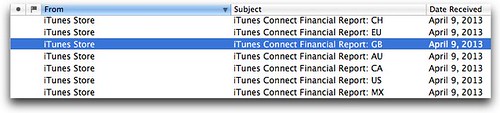
Did you get a whole new slew of Apple iTunes Connect reports yesterday in your email inbox?

Inbox

I did. They're pretty useless. Each one simply reminds me to go download the full report from iTunes Connect. And I get a separate one for each currency in which I've sold books. It would be nice if I just got a single email, perhaps detailing which currencies.

So, then you head over to iTunes Connect. I always go first to Sales and Trends, only to remember, a few glacial seconds later, that I have to download the reports from Payments and Financial Reports. Click the Earnings Tab and you'll see a long list of documents to download, one for each currency and for each month. Ugh.
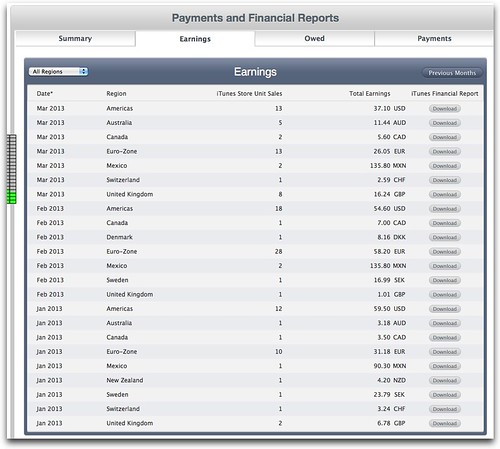
iTunes Earnings 1Q2013

As you can see, my earnings on the iBookstore are paltry. Good thing I sell books elsewhere! This is certainly due to a combination of my books being very niche categories (extreme EPUB and Catalonia!) but I'm certainly willing to lay some blame at Apple's door. I wish they would beef up the iBookstore and make it a place that was friendly to book buyers. They do a number of things right: being available in the largest number of countries, creating the best ereader software (iBooks), and more, but the store just isn't up to snuff. It needs search desperately. It needs reviews, and ways to share, and comment. Anyways.

When you click those download buttons in the right column, you get gzipped files (who knows why!?) for each individual period. Before you proceed, count up the ones in the list and count the ones you downloaded just to make sure you haven't missed any. (I always miss a couple.) Then, double-click each one to unzip. I wish, oh I wish, that I could choose the period myself! Maybe I want a single period, maybe I want all the data for a year.

When you open the files up in a text editor, you'll see that they are partly a tab delimited collection of sales data, but with totals at the end.
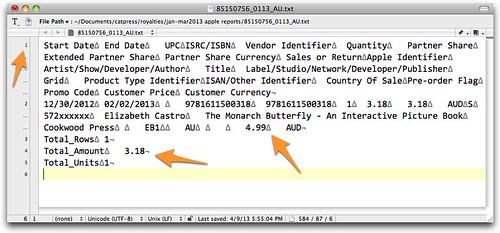
Apple report file

That first line contains the field titles, and the second line is a sales record. If there were more sales records, there would be additional lines. Each field is separated with a tab (shown here by a triangle). Those sums at the end will mess up my database, so I eliminate them.

But this data on its own is not that interesting. What I want is to be able to compile the sales data from each currency and indeed each month into a single report. This is where FileMaker comes in.

I created a database with FileMaker into which I can import Apple's files, and then generate reports that tell me how many books I've sold, and which months and countries I've sold them in. If you're a subscriber, you'll have received a free download link.

Before importing, remember to make a backup of the FileMaker database, and to have removed the total lines from the Apple reports, as described above. If your fields have accented characters, I also recommend saving them with a Mac Roman character encoding. It's a hassle, but it will ensure that those characters are properly read into FileMaker.

Then choose File > Import Records > File in FileMaker. Choose an Apple report and click Open.
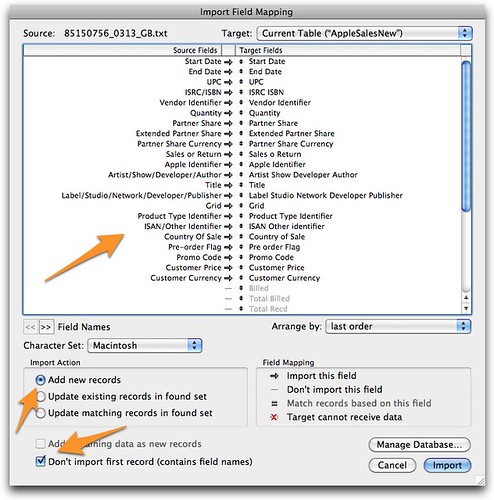
Import Field Mapping

In the Import Field Mapping box, first make sure that each of the Field Titles matches the corresponding Field in the database. Click Add new records, and also Don't import first record (contains field names), since that is precisely the case with the Apple records. Then click Import.

You will see that a record is created for each title that has been sold in that currency,during that period.

Import all of the new Apple sales record files. The hardest part of this step is not importing the same file twice! (I've tried saying the name of the file out loud—paying attention to the two-letter key at the end of the code—and also looking at the just-imported file in FileMaker just before choosing the new one. Maybe this is easier for some people?)

Once you've got all the data in my FileMaker database, the rest is easy. I've got automated scripts for creating lists, as shown here.
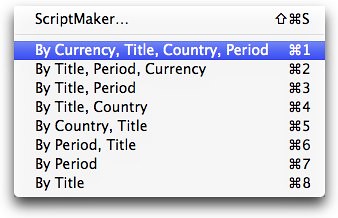
Scripts

Here are some samples. Note that they're very simple, and they don't have titles. This is because there are only three layouts that serve the eight lists. But they work.

For example, here's what the list "By Currency, Title, Country, Period" looks like. This first page corresponds to first page of the sales in Australian Dollars, but has summaries for each period, for each country, and for each title. With currencies that are used in multiple countries, like the euro, the country section is more interesting.
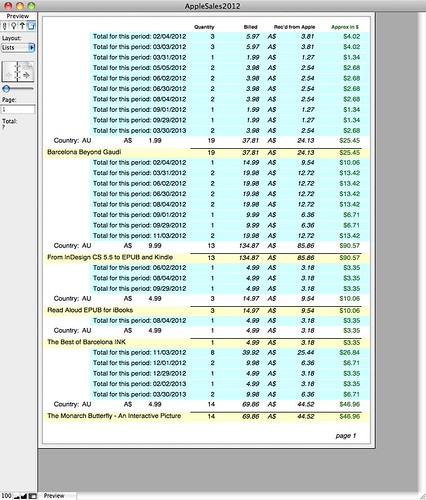
AppleSales2012

And here is the report created with the Script "By Title, Period, Currency":
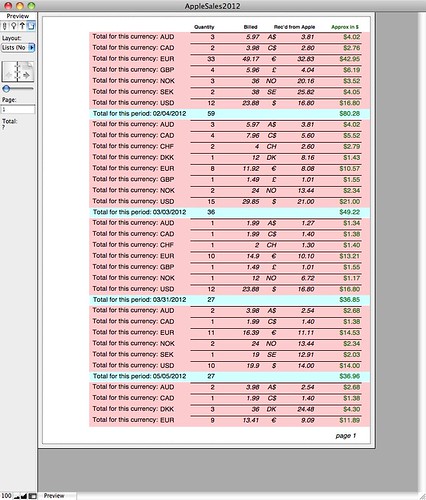
AppleSales2012

This page corresponds to the sales of a single title, with summaries for each period, and for each currency. Notice that only the estimated conversion to dollars is subtotaled, since it wouldn't make sense to sum different currency amounts.

And so on. I'm not a FileMaker developer, so I'm sure if you are, you could do this more beautifully. But it works, and indeed gives a much clearer and more complete view of your Apple iBookstore sales. I'm happy to share the database (without my data, obviously) to all my subscribers for free. Or you can buy it separately for $5. Use at your own risk!

Apple's new monthly and yearly reports

As so often happens, just as I was writing this blog post, I got an email from iTunes Connect letting me know that the Sales and Trends module of iTunes Connect had been improved. And that now I could download sales data for the whole year. I was very excited, but alas, it has a major flaw: if you download a yearly report, it doesn't give you the date for each sale; for example, all of the 2012 sales are are marked "December 31, 2012". So if you want a very summarized view of your sales, it might be helpful, but it's not sufficient for my purposes.

The one thing that is in those monthly reports through the Sales and Trends module that you won't find in the Payments and Financial Reports section is data about how many free books you're giving away. That is essential information if you're using free books as a hook to get people to look at your books for sale. I don't have a database set up for that yet (mostly because it would require downloading each monthly report from the Sales module), but I hope to offer that to you in the future.

How do you find those reports? It took me a while, and I even called the iTunes Connect hotline to ask for help (1-877-206-2092 in the US, and there are numbers in other countries as well). They answered almost immediately, but unfortunately said that they didn't know how to do it either! After I rummaged around a bit more, I figured it out:

Start in the Sales and Trends module. Click the Sales tab in the upper-right corner of the window.
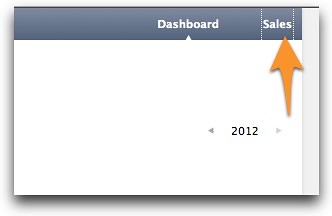
iTunes Connect-Sales

Next, click the date and choose monthly, yearly, and then the actual month or year you're interested it.
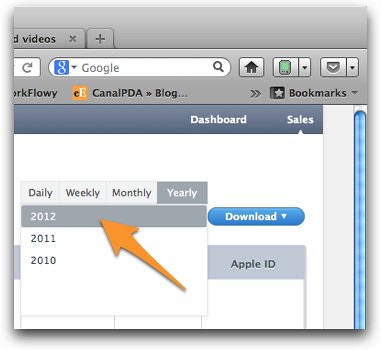
iTunes Connect-yearly

Then click Download. And you get one of those marvelous g-zipped files, that when unzipped is a tab-delimited set of data (distinct from those downloaded from Payments and Financial Reports.

What could Apple do better?

What I want is a single place where I can choose the period (from all my sales, to monthly, yearly or whatever I want), and then export all the data at once, in a single file. And I want all the data: which book, how many copies, which country, which currency, and on which date. It's not hard. Lots of other distributors offer such tools.

Tuesday, May 29, 2012

Print on Demand, Indie Publishing, and Europe

I've been writing about how to create ebooks for the past two years, but I am well aware that ebooks, even in the United States where they are most popular, only account for some 20% of the market, and in many places, much less. For a small publisher to get a foothold, it's really important to offer print versions as well.

The answer for many indie publishers has been print on demand. For the last ten years or so, Lightning Source, a subsidiary of Ingram (a major book distributor in the US and in Europe), has let publishers upload books to their system and then print them as orders come in. They used to distribute them equally well to Amazon, to Barnes & Noble, to Baker & Taylor, and indeed to any bookstore who wanted one.

Last year, thanks to the information gleaned from Aaron Shepard's POD for Profit, and the Publishing-Update email list that he hosts, I opened an account with Lightning Source and began publishing my first print books: Barcelona, Catalonia: A View from the Inside by Matthew Tree, What Catalans Want by Toni Strubell and Lluís Brunet, and then some books of my own, Read Aloud EPUB for iBooks and From InDesign CS 5.5 to EPUB and Kindle.

At first, everything went as promised. In my tests in March, I ordered Matthew's book from Amazon and it was printed and delivered with 48 hours.

But some time during the summer, Amazon changed the way it handled Lightning Source books, in favor of its own POD service, CreateSpace. Aaron and his community were the first to notice that Lightning Source books were suddenly not "in stock" on Amazon, but instead would ship in 1-3 weeks. This, of course, is a killer for any book. Part of Amazon's strength is its reliance on impulse buying, and 1-3 week delivery does not inspire anyone to buy a book right away. At the same time, CreateSpace books were always in stock.

Aaron developed a system called "Plan B" for dealing with this issue, which involved publishing books through both CreateSpace (to get the best availability on Amazon) and Lightning Source (so that books would also be available to Barnes & Noble, Baker & Taylor, and independent bookstores. I heartily recommend going through it carefully.

I have followed the Plan B system with my own books with success, but was still frustrated at the inavailability of Lightning Source books on Amazon outside the US. I sell a full 50% of my electronic versions of my books outside the US and I'm sure that print books would also sell abroad if I could only get them there. The deteriorating relationship between Lightning Source and Amazon meant that my books were available through Lightning Source's impressive list of distributors, but had 1-3 week shipping times from Amazon UK, Spain, France, Germany, and Italy.

It was really frustrating.

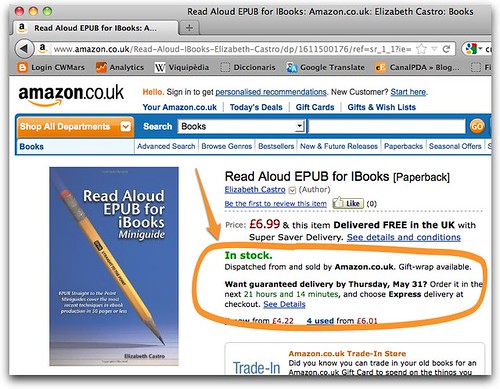
So, I was really excited to hear that Amazon's Print on Demand service, CreateSpace, is now available in Europe. If you already have your book available on Amazon CreateSpace in the US, you just have to go CreateSpace and activate your European markets. It's quite simple. And your book will be guaranteed in stock throughout Europe.

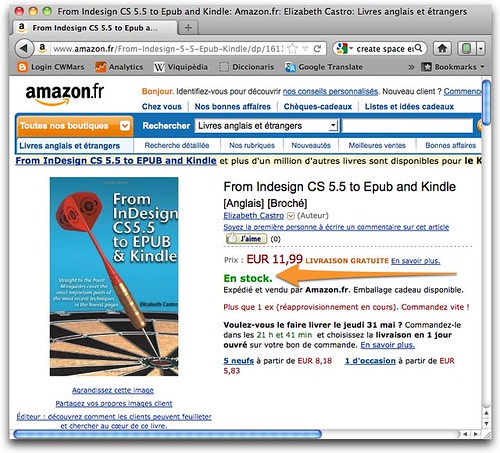
So, now you can buy Read Aloud EPUB and From InDesign CS 5.5 to EPUB and Kindle in print from Amazon all over Europe (in English and Spanish!), as well as my books about Catalonia.

In Stock

Instock france

Wednesday, April 4, 2012

Sideloading ebooks with Dropbox

Whether you create ebooks for a living or just read them, getting books onto your reading device—or devices!—of choice is not always as easy as it should be. Sure, Amazon has its Whispersync that shuttles files straight to your Kindle apps and iBooks will get books to your iPhone/iPad or iPod touch, but what if you buy a book from an independent author (like me :), or download one of Cory Doctorow's books, or create your own and want to see what they look like? The answer is sideloading, the term for getting ebooks to your reader without a store's help.

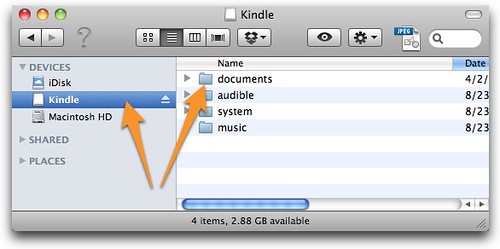
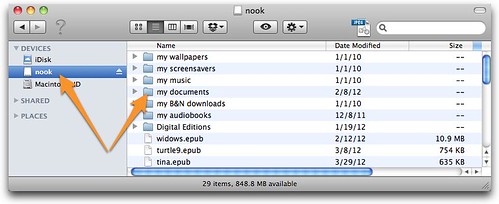
The most basic way to sideload is to hook your ereader up to your computer via the USB cable. Most ereaders (but not iOS ones) will appear on your desktop just like any other external drive.

Kindle-disk

nook-disk

Just drag your ebook file (in the appropriate format, of course) to the Documents folder on the ereader (actually NOOK is not very picky about where you place it), then eject your disk, and you can find the new ebook installed. (Nook and Kindle Fire put your sideloaded books in the My Files/Docs area, respectively.)

On iOS (iPhone/iPad/iPod touch), the process is a fair bit more laborious. You're supposed to use iTunes, as I describe in EPUB Straight to the Point, either syncing manually or automatically. But it takes longer than it should. Apple offers a little app called Book Proofer to folks through its iTunes Connect program that lets you edit a book on your computer as you simultaneously preview it on your iPad or iPhone, but it's not public, and it's not foolproof.

It turns out DropBox is a brilliant alternative to all of this. Dropbox lets you create a folder on your computer that is automatically copied to the "cloud". That means that you can access it from any other computer or even reading device.

(If you don't already have a Dropbox account, you can follow this link to get one and you and I will both get 500Mb additional free disk space.)

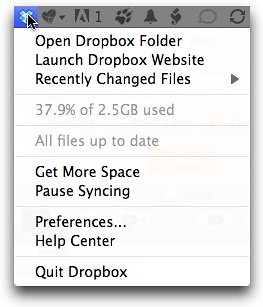
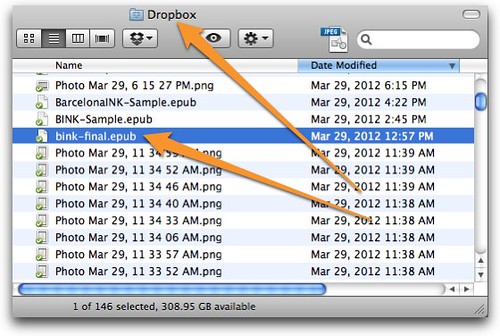
To sideload a ebook with Dropbox, first copy the ebook to your Dropbox folder. (If you don't know where the folder is, you can use the Dropbox menu at the top of your screen to open it: dropboxmenu, or just find it yourself, generally right in your home folder.

Dropbox

Then, on your iOS device, download the Dropbox app, launch it, and sign in.

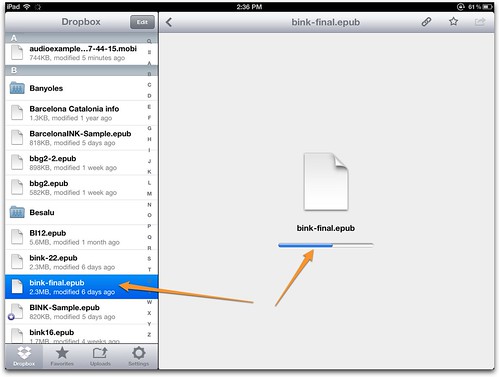
Select the ebook that you want to sideload from the Dropbox menu. It will start to load.

sideloading ebook to iOS

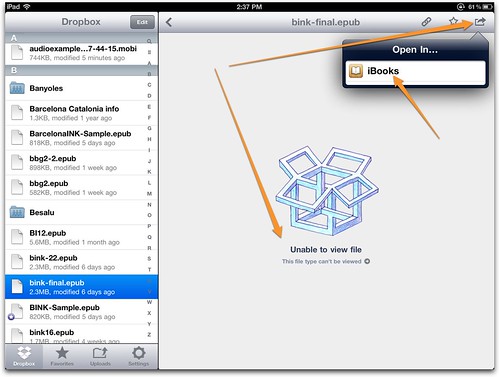
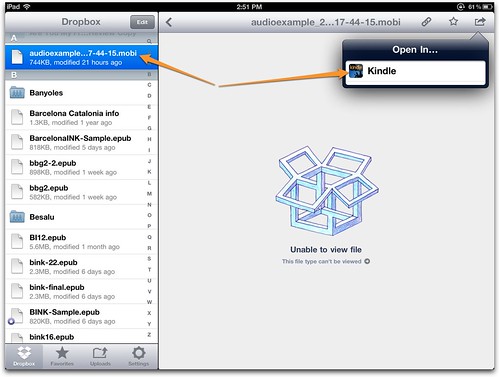
Dropbox can view some file formats right in the app itself, but not EPUB or mobi. So when it gets done copying the file, it will tell you it doesn't know what to do with it. Thankfully, all you have to do is click the "Away" icon in the upper right corner of the screen, and Dropbox will offer to transfer the file to an app that can view it, like iBooks in this case. Bravo, just what we wanted.

dropbox to iBooks

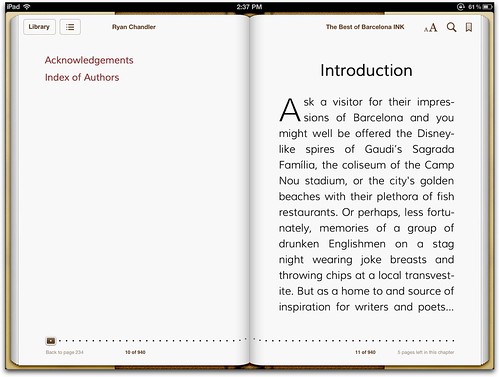
Once you choose iBooks in the menu, iBooks will open automatically and show you your book. It's really lovely:

in iBooks

Dropbox will work on iOS for both EPUB and Kindle/mobi:

dropbox to Kindle

This is pretty interesting, considering that before Dropbox there was no way to test a Kindle book on an iOS device before selling it through Amazon. you had to use iTunes to copy mobi files to the Kindle app on iOS. (Connect device, choose Apps, go down to the bottom of the screen, click Kindle, click Add…, choose your mobi file, then sync. Thanks, Dan Rodney—see comments—though I still think iTunes is a slow solution.) The closestAnother alternative was using the Kindle Previewer app.

I thought Dropbox might even be the answer to the conundrum that you can create a Kindle book with audio and video, but there is no way to test it, because there is no way to get the AV book to Kindle app for iOS which (ironically) is the only Kindle app that supports audio and video! — you can only see it *after* it is published to Amazon, which, sadly, still does not allow independent authors and publishers to sell books with audio and video.

Alas, I have not been able to get this to work. I can get the audio/video Kindle books to the Kindle app on iOS, but the audio and video do not play. I haven't finished poking at it yet, though. I'll keep you posted.

Note that some ebookstores make changes to books as they deliver them. That is, a sideloaded book is not always identical to its purchased cousin, though in my mind, it sure should be. In particular, I've heard complaints about NOOK and Kobo, and I'm wondering if Amazon doesn't bake something special into its AV books for iOS as well. More on that another day.


Friday, February 3, 2012

A Range of EPUB Tools, more thoughts on OpenOffice and Writer2ePub for EPUB

Yesterday I posted a quick how-to on how to create an EPUB file out of a Word (or Word type) document using OpenOffice and the Writer2ePub extension.

There were a number of comments about why I didn't explain other, more powerful tools, and also others that questioned even using OpenOffice.

And it made me think a lot about the range of tools available and how best to talk about them. Some EPUB tools are very costly—there are turnkey automated systems in the hundreds of thousands of dollars—and some, like OpenOffice are free. Similarly, the power, flexibility and number of features changes drastically from one end of the spectrum to the other, not always in a direct correlation to price.

I am a long-time InDesign user. I use it for my work and consider it an essential part of my tool chest. I had PageMaker so ingrained in my fingers that after a long hiatus (during which I was a happy FrameMaker user) when I returned to InDesign I automatically pressed Command-D to place an image, even though that was not the command in Frame and I hadn't used PageMaker for years. So, it's completely natural for me to think about InDesign and include it in my workflow.

But my profile (computer book author and publisher) may not match that of each of my readers. Many people who are creating ebooks today are not interested in print, which is InDesign's forte. And they're not interested in InDesign's price, which is around $700.

Do I recommend using OpenOffice to create ebooks that you're going to sell? I don't. It would be a little bit like trying to sell spiralbound copies of a print book straight off of your home printer. You might be able to eke out a decent looking thing in OpenOffice, but you'll need to do a lot more than I explained in my post yesterday. Which probably begs the question: Can you create a professionally designed ebook without touching the code? Again, I don't think so.

But maybe you don't need a professionally designed ebook. Maybe you want to “rip” a quick EPUB out of a Word file to bring with you on your phone. Maybe you want to share your growing manuscript with a friend. There are plenty of situations where OpenOffice + Writer2ePub might be just what you need.

And it's important to know what tools are out there, especially if they're free. One of the brilliant things about ebooks and independent and self-publishing is that it's open to all. I would hate people to think that they had to buy a $700 program before they could create an ebook.

There are more tools that I want to talk about. Pages, Sigil, Calibre, BBEdit, Smashwords' Meatgrinder, KindleGen maybe even iBooks Author—are there others you depend on? Each one has strengths and weaknesses, and each might be the best suited for very specific situations. I will spend some time in the coming weeks going over each of these.

For now, know that you *can* create EPUB files from Word using a completely open-source and free combination of software. It won't create the kinds of files you can get from InDesign (or other tools), but it's better than nothing. Just.

Thursday, February 2, 2012

Quickest, easiest, cheapest way to create an ebook?

Update 2: More thoughts on OpenOffice and Writer2ePub for EPUB

Update: I've added the OpenOffice document, including images, the EPUB file generated with the Writer2ePub extension, and the Kindle file generated from that EPUB file with Kindle Previewer 3 at the end of this article.

I've been writing about creating ebooks for a while and it occurred to me that I've tried to cover a lot of the edge-case scenarios: nice formatting, drop caps, special fonts, audio, video, fixed layout, poetry, and more. But what if you had a drop-dead simple book and you wanted to create an ebook in the quickest, easiest, cheapest way?

Here's what I'd recommend. First, download OpenOffice. It's free and available on multiple platforms.

Next, download the Writer2ePub extension. It is also free. It was written by Luca "Luke" Calcinai, and like a good European, he offers documentation in several languages. Install the extension by choosing Tools > Extension Manager from inside OpenOffice and then clicking the Add button and finding Writer2ePub.

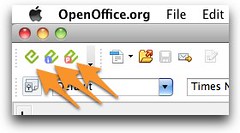
Once it's installed, you'll see that there are three new icons on your OpenOffice desktop:

Writer2ePub buttons

Next step, write your novel. I'll wait.

OK, you can open any Word document in OpenOffice. You could even copy someone else's if you have to. That's what I've done. Mark Twain's “The Jumping Frog”.

Now paste it into a new document in OpenOffice.

You could just hit the export to EPUB icon already, but as much as I want to give you simplest way, I can't go that low. (If you can, just skip on down to the bottom.)

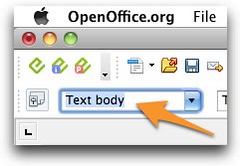
Select all of the text and choose Text Body from the style menu.

Text body

Next, select the title of your book and choose Heading 1 from the Style menu.

Heading 1

Now, select each chapter title in turn and choose Heading 2 from the Style menu.

Heading 2

Now, add your images by choosing Insert > Picture > From file, and then locate the image you want to place. You can resize it by dragging the corners. Hold down Shift to maintain the original proportion.

Add any final formatting you wish. Feel free to make some of your text bold or italic, or what have you. Remember this is the easy-peasy system so I'm not going to go into special effects.

The actual EPUB part


Now, save your document. All you non-savers go right ahead and do it anyway, Writer2ePub won't let you proceed until you do. (Choose File > Save.)

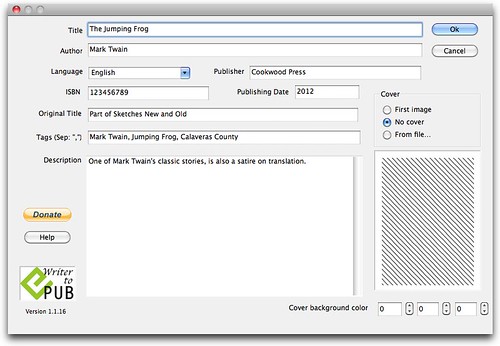
Now click the leftmost Writer2ePub icon (the one that's all green). The metadata window will appear.

My recommendation is that you fill out all of the metadata, but Writer2ePub will work with just the title. (Note that when I tried to add a cover, it gave me an error upon validating my EPUB later on.)

Metadata

Click OK to generate the EPUB file.

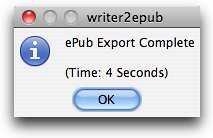
First you'll get a little alert that confirms your EPUB was created and tells you just how long it took.

writer2epub

And if you look in the folder that contains your OpenOffice file, you'll now see your new shiny EPUB:

twain

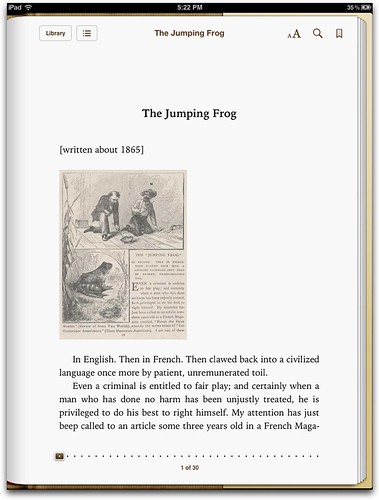
Mine passed ePubCheck with nary a peep. Here it is in iBooks:

Jumping Frog

Now, there's a LOT more that you can do. You could add a cover, you could format the book much more nicely with drop caps and background colors and sidebars and centered images, you could add video and audio and all those things that I teach you in my books. But if you just want to convert your Word document into EPUB, you could do a lot worse.


Here are the sample files that I used in this article just in case you want to take a closer look:

The OpenOffice file (Twain.odt), in this case Mark Twain's The Jumping Frog.
The EPUB file generated with Writer2ePub extension (Twain.epub)
The Kindle file generated from the EPUB file with Kindle Previewer 3 (KP3-Twain.mobi)
And a zip file that has all of the above plus the image files (Writer2ePub-example.zip)

Monday, January 9, 2012

“When I lived in Barcelona, it never felt like Spain to me”

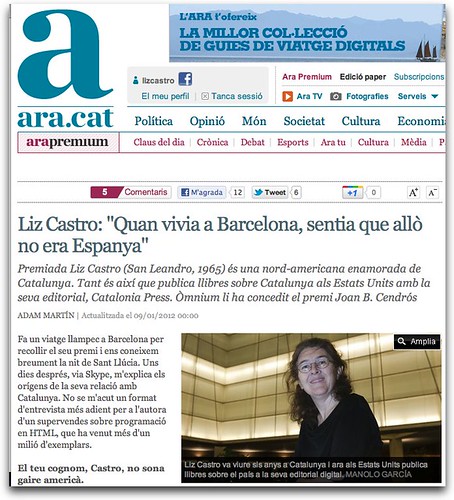
Liz Castro a Ara (I recently was interviewed in one of Barcelona’s principal newspapers, Ara, by Adam Martín. Here’s my translation of the article into English.)

Prize-winner Liz Castro is an American woman in love with Catalonia. So much so that she publishes books about Catalonia in the United States with her publishing house, Catalonia Press. Òmnium recently awarded her the Joan B. Cendrós prize.

Adam Martín | Posted on 9 January 2012

She made a quick trip to Barcelona to collect her prize and we met briefly on the night of Santa Llúcia [the awards ceremony]. A few days later, via Skype, she explains how she came to know Catalonia. I can't think of a more appropriate format for an interview of the author of a bestseller on HTML programming which has sold more than a million copies.

Your last name, Castro, doesn't seem very American.

I'll tell you the story, but it's kind of long. My great-grandparents were from Andalusia and immigrated to Hawaii in 1907 to work in the sugar plantations. The two families met on the boat, worked in the same places and then later moved to the same town in California [where I was born].

So you have roots on the Peninsula.

Yes. And all my life I wanted to learn how to speak Spanish, because I wanted to conserve something of my father's family. And when I went to college, I studied Spanish. And then found myself in a Catalan class.

In a university in California?

Yes, with a professor from Brazil, funny, huh? And he was very Catalanist: he made us read the Avui newspaper [the first Catalan language newspaper begun after Franco died], and sing “Baixant de la font del gat” [a Catalan nursery rhyme song] and even Els Segadors [the Catalan National Anthem]. And he told us a lot about linguistic policy. At the university I also studied a fair bit of sociolinguistics, and I was very interested in bilingualism, figuring out why, when there is more than one language, one is used more often than the other.

And you had never been to Catalonia?

I had been in Spain a few times, in Madrid, and I had spent a week in Barcelona, but I didn't know much about it. I did come in contact with Catalan, but in a very superficial way: at the house of some friends of a friend and they were watching Dallas in Catalan.

Why did you fall in love with Catalan?

I attended the Summer Catalan University in Prada [set up during the Franco era so that Catalans could keep studying about Catalonia and in Catalan], sort of by accident, and I was really blown away by the sense of identity, of nation that people had: they knew who they were. Maybe I was looking for that. I wanted to know more. I was 21 years old. And I remember that people treated me like a movie star: "An American who speaks Catalan, that's awesome!" they said. That was in 1986, when they're weren't that many of us [Catalan speaking foreigners].

And then you moved to Barcelona.

I had $800 saved up, and I packed my things and decided to move to Barcelona. I estimated my savings would last for about two months. I didn't want to be a tourist there, I wanted to be part of the city and live like a Catalan. I found an apartment in Vallcarca and then found work right away in a Macintosh software start-up, also by accident. And all of a sudden, I had enough money to stay for longer than two months.

What surprised you most about the city?

I didn't understand when people slept, because we went out every night. And the schedule, in general. I sang in the Orfeó Català [a choral group] and our rehearsals started at 9:30 pm! In the US, that would be absolutely unheard of, no-one goes out for a rehearsal at that time of night! And I also realized how social everyone was: they spent hours and hours chatting, at lunch and at dinner, and after lunch and after dinner, the sobretaula. [Sobretaula is the Catalan word for the time you stay at the table and talk after you finish a meal.] In English we don't even have a word for that.

How long were you here?

Six years. During the last three, I ran a small publishing house for which I found interesting Mac related books, secured the rights, had them translated into Spanish, and then sold them all over Spain. And then a publishing house in the US offered me a job in the US and I decided to go home.

Your ties with Catalonia continued?

Well, I brought a husband home with me, and he's from Barcelona! [laughs]. We have three kids and we return each year and make an effort so that they speak Catalan. Last year we spent the whole year in Catalonia so the kids could go to school there and really learn the language well.

And how did you start publishing digital books about Catalonia in a market that seems a priori not very interested?

It is and it isn't. Everyone I know probably knows more about Catalonia than they might have chosen to if they didn't know me... But now there are lots of tools for spreading information! Facebook, Twitter. It just seems so unfair what happens in Catalonia. People from the US go there and they don't have a clue what Catalonia is about. One of the things that I felt when I lived there was that it wasn't Spain, Spain was someplace else. Madrid was Spain, but not Catalonia.

How can digital books and the internet help?

They make tools available that help every person be able to tell his or her own story, and explain whatever they want. The gatekeepers are disappearing; you don't have to convince anyone to publish what you're thinking about, you can do it yourself.

What have you published with Catalonia Press?

Two books: one by Matthew Tree, Barcelona, Catalonia and one by Toni Strubell and Lluís Brunet, What Catalans Want. Now the access to publishing is so much simpler and I can help people know Catalonia much better. It's a small thing that I can do. And I need to. A few days agao, there was a terrible article about [the budget and] the autonomous communities in the New York Times. Whoever wrote it had no idea what they were talking about!


Thursday, January 5, 2012

Selling ebooks outside of the US

If you're thinking about self-publishing, make sure you don't forget to look beyond the borders of the United States.

I started selling the electronic version (only) of my EPUB Straight to the Point book when it was published in late 2010. The print version was available through my publisher, Peachpit Press, and through traditional and online booksellers. The response was very encouraging. The first thing that I noticed was that people were buying the book from far away. A fair number of my first sales were from Australia, South Africa, and Europe, where it might have taken the print book several more weeks (months?) to arrive.

In February, 2011, I published my first miniguide, Fixed Layout EPUB. Originally, I envisioned it as an update to EPUB Straight to the Point, and so I decided to offer it for free to anyone who had already purchased that book. For those who were just interested in the Fixed Layout EPUB miniguide, they could buy it for $4, and then apply the $4 to the purchase of EPUB Straight to the Point. I sent out an email to all of the people who had bought the book directly from me. It got a huge response, and indeed, I continue to get a few requests for the Fixed Layout miniguide pretty much every day.

Between May and December, 2011, I published three additional miniguides, Audio and Video in EPUB, Read Aloud EPUB, and most recently From InDesign CS 5.5 to EPUB and Kindle. I love the idea of writing very short, focused, timely, inexpensive guides on the latest ebook production techniques. I don't have to spend months and months, and the information is fresh. Instead of giving these away, I have sold them for nominal amounts that make it easy for people to keep up to date with the latest EPUB information. With each new book, I send out a mailing to everyone who has bought any of the previous ones. They have proved very successful.

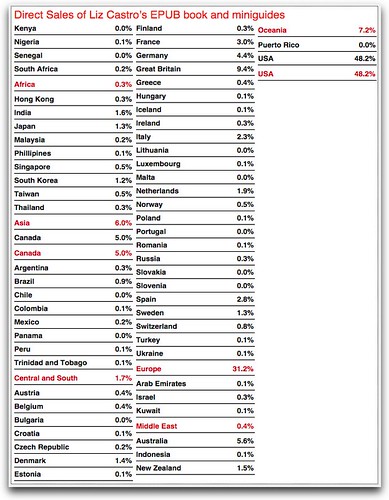
I never meant to self-publish. But the more books that I sold directly to readers, and the more names and emails that I collected, the more it seemed to make sense to continue to offer EPUB information to these folks. As a long time user of FileMaker, I've been able to massage my data to see just which books people are most interested in, and also where I sell the most books. I love looking at this information so I thought I'd share it with you. If you're a self-publisher, look closely at how many readers are NOT in the US. Click on the graphic to magnify.

SalesbyCountry

Indeed, more than 50% of my readers are outside of the US. More than 30% are in Europe. Almost 10% in the UK alone. Notice that although everyone says that Spain is full of pirates, there is little difference between sales to Spain and to France, which is similar in size. I am convinced that the way to compete with pirates is not on price, but rather on service and ease of use. Oceania, between Australia and New Zealand makes up amother 7%, Canada 5%, Asia 6%, and a sprinkling in Africa, Central and South America, and the Middle East. (Yes, my regions are pretty arbitrary.)

Now you see why I talk a fair bit on Twitter and in my blog about marketing outside of the United States. Ebooks are clearly a worldwide phenomenon and particularly for my readers, timeliness is one of the key features of my books. But neither Amazon nor Apple sell all over the world.

I didn't want to limit myself to the US, and I also definitely didn't want to depend on a single retailer. So I decided to sell my books both through those channels, and also directly to readers, using a fulfillment service called Kagi, based in California. Kagi stores my book files, charges customers and collects sales tax and/or VAT, and then emails a unique download link to each customer. It's not perfect—I've heard complaints that the system is sometimes slow—but it's definitely a start. And I love being able to get my files up just when I want to, without having to get Amazon or Apple to approve them.


Thursday, December 1, 2011

Kindle Store and Kindle Direct Publishing open in Spain and Italy

Wow, Amazon has just opened both the Kindle Store and Kindle Direct Publishing in Spain and Italy.

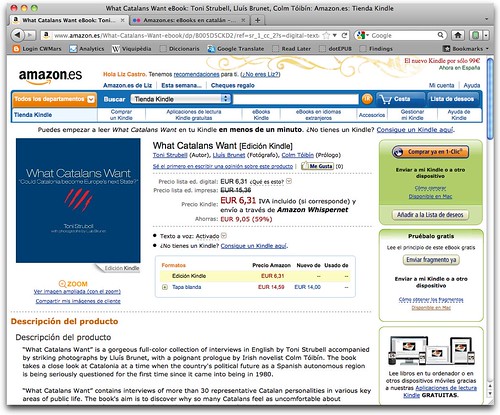
Amazon.es: eBooks en catalán - eBooks en catalán, gallego y euskera: Tienda Kindle

This means that people in those countries can self-publish their ebooks to the Amazon ecosystem and it also means that existing self-publishers on Amazon KDP, including folks in the US, will receive 70% of royalties from sales in Spain and Italy (as well as San Marino, Vatican City, and Andorra). Up until now, only sales to customers in Austria, Belgium, Canada, France, Great Britain, Guernsey, Germany, Isle of Man, Jersey, Lichtenstein, Luxembourg, Monaco, Switzerland, and the US received royalties of 70% (sales to customers in other countries only receive 35%)

Amazon has translated most of the self-publishing help files into Spanish and Italian, simply click on the language button at the top of the Kindle Direct Publishing site:

KDP-ES-IT

I would recommend going carefully through the legal and tax information. Amazon recommends taking advantage of the tax treaties between countries in order to avoid double-taxation. Such a tax treaty exists at least between Spain and the US, I'm not sure about Italy.

For starters, Amazon says there are 22,000 books in Spanish for Kindle on the Amazon Kindle store. And I just found 1028 Kindle books in Catalan, 68 books in Galician, and 138 in Basque. There are 16,262 in Italian. Amazon says in its documentation that it only allows books in Spanish, French, German, English, Portuguese, and Italian,  but that clearly is not the case, at least not for big publishers.

Too bad I can't buy any of them. Looks like you have to have an account on Amazon.es in order to buy them. That's pretty ridiculous, this is the perfect opportunity for a small publisher to reach out to the world. My books published in the US are available on Amazon.es, now I would like to see those Catalan books available on Amazon.com. Please?

What Catalans Want eBook: Toni Strubell, Lluís Brunet, Colm Tóibín: Amazon.es: Tienda Kindle

Tuesday, November 1, 2011

Pricing books on Apple iBookstore

I have been selling ebooks on Apple's various iBookstores for several months now. I noticed last night that the amount I earned on books sold outside of the US and Canada was much closer to 60% rather than the 70% promised. Since I know that Amazon charges different amounts depending on the location of the buyer, I wondered if that was the issue here as well. It is, but for a different reason altogether.

When you set the price for a book in the US on the Apple iBookstore, the price does not include any sales tax. So, if you set the price at $4.99, Apple will send you $3.49 for each sale (70% * $4.99 = $3.49).

If you set the price of your books in Europe, something very different happens. Apple has cleverly based their European operation in Luxembourg which has the lowest taxes in Europe. Nevertheless, Apple is required to do two things: collect Luxembourg’s 15% VAT on digital books and advertise books with that 15% already included in the price.

What Apple doesn't make very clear, in my opinion, is that when you choose the price for your ebook in European iBookstores, you are choosing a price that already includes that 15% VAT. So, if you quickly convert your $4.99 into 3.65€, you might be tempted to choose an iBookstore price of 3.49€ for Europe. But you should know that .45€ of that amount is VAT and so the actual price of the book would only be 3.04€. This will become all the more clear when you get your sales reports from Apple and they only give you 2.12€ ($2.89) for each sale (which is roughly 70% of 3.04€, and only about 60% of 3.49€).

To figure out a better equivalent for your $4.99 book, do this:

1. Convert $4.99 to euros (google “$4.99 to euros” for a rough estimate): 3.65€
2. Multiply price in euros by 1.15 (adding 15% to price): 4.20€
3. Look for closest matching price tier in iTunes Producer: 3.99€ or 4.49€

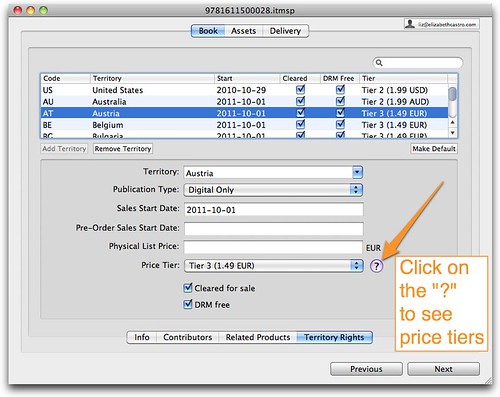
One way to see what Apple will send you for each sale is to click on the question mark next to the Price Tier field in iTunes Producer or in iTunes Connect:

Price tiers 1

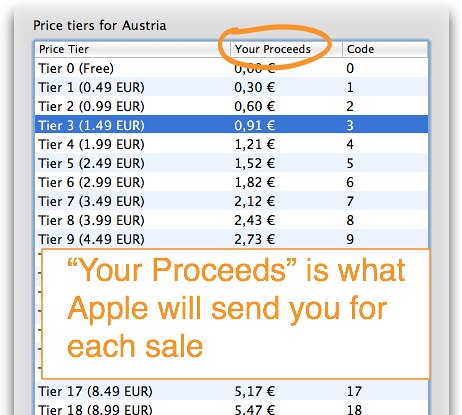
When you click the question mark, you'll see this list of Price Tiers and “Your Proceeds” which is how much Apple will send you for the sale of each book. Note that for EU customers, it's always 70% of the Tier price divided by 1.15 (70% * (Tier/1.15)).

Your Proceeds

Note also that if you click any Price Tier in the list, your book will be automatically and immediately updated to that Price Tier. No additional OK will be required, and no Cancel is available. To go back to the original price, you'll have to reselect the original price.

This same pricing issue also occurs with the Australian iBookstore (where the price you set includes about 10% tax).

This article is meant to be orientative, not definitive. I'm not a lawyer, tax or otherwise, or an accountant. You should consult one of those if you have doubts.

Monday, October 3, 2011

“Impressions of Greece” and when to use Fixed Layout (EPUB Gallery)

Update: I've just received the print copy of The Artist on the Road: Impressions of Greece from Richard in the mail. It's just as beautiful as the iPad edition. And just as inspiring.

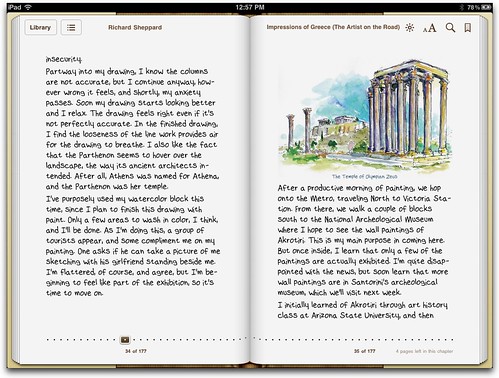
Vertical ImpressionsAbout ten days ago, I invited you readers to send me your EPUBs so I could share them here and we could all look at the interesting effects that you are using in your ebooks. I received a number of really nice looking ebooks, and today I am going to share the first with you.

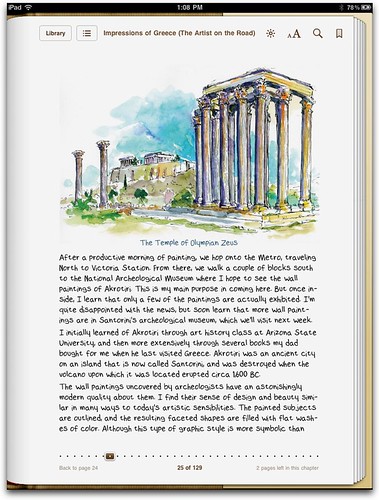
This first book that I want to talk about is called Impressions of Greece (The Artist on the Road) and was written, illustrated, and produced by Richard Sheppard. It is a collection of sketches, watercolor drawings, and journal entries as Richard and his father traveled around Greece. It's really nicely done.

Although one of the reasons that I wanted to create an EPUB Gallery was to showcase how people are using advanced EPUB features, Impressions of Greece is careful about which features it uses in order to maintain the book's readability. I think that's a very important lesson: cool features that make the book less readable are not really that cool. Corollary: There is a time and place for [your favorite special feature] but that doesn't mean it's appropriate for every book.

Impressions Horizontal

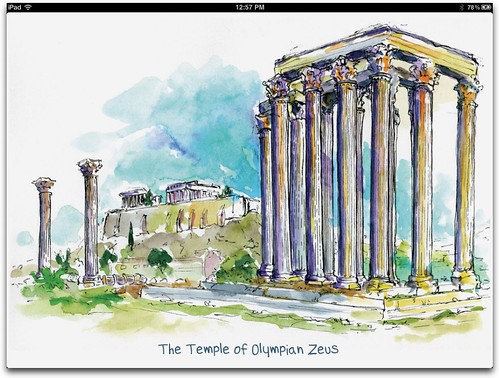
In this case, Richard originally planned to create a fixed layout book, which made sense given the large amount of really lovely illustrations contained in the book and their importance to the project. However, he quickly realized that fixed layout is not well suited to large amounts of text—which his book also has. So instead of insisting that his beautiful drawings be rendered full screen with fixed layout, Richard used a flowing format that makes it easy to read the text while allowing readers to expand the beautiful illustrations full screen with a double click whenever they choose.

Impressions - full screen image

In addition, in order to maintain the feel of his journal, Richard had his handwriting converted to a custom font and used that font to display his text in the book, by specifying that font in the com.apple.ibooks.display-options.xml file:

<?xml version="1.0" encoding="UTF-8"?>
<display_options>
<platform name="*">
<option name="specified-fonts">true</option>
</platform>
</display_options>


While I'm not entirely convinced by the handwriting font—I like the feeling it gives the book but I find it just a tiny bit distracting (and I think more leading would help)—the fact that readers can override it by choosing one of Apple's generic fonts in the Font menu make this less of a worry. This is the balance of control between reader and designer that I appreciate: the designer offers how they want the book to be displayed, but the reader has the final say.

Impressions of Greece (The Artist on the Road) can be purchased in EPUB format from the Apple iBookstore, and in paperback from Amazon. You can find out more about Richard, his books, and his sketching on his web site, The Artist on the Road.

--------------------------

If you would like me to review your EPUB book on my blog, all you have to do is send it to me. It can be fixed or flowing format, and though I'll need you to send me a DRM-free version, you can sell it anyway you like. Be sure to send me links where readers can buy your book if it's for sale. By sending me the file, you give me permission to display screenshots from the book and samples from the code on my website. I reserve the right to review just the books that I think my readers will find interesting (or that I find interesting myself!).

You can view all of the EPUB Gallery entries by clicking EPUB Gallery in the cloud of topics at right, or by searching for EPUB Gallery here on my site.


Sunday, October 2, 2011

Use iTunes Producer to add new territories

Update: Be sure to read the second comment for this post, where it explains that you don't have to have the original packages that you uploaded; instead, you can download the original metadata and then edit it.

Yesterday, I railed against Apple for making it so time consuming to add new territories with iTunes Connect. That process is still excruciatingly slow, but thankfully, David Fox of Electric Eggplant found a faster way: with iTunes Producer. Here's how it works.

Open iTunes Producer. Then choose Open Package… in the opening dialog box.


You'll get a dialog box that lists the “packages’ of the books you've uploaded so far. A book package is the information that iTunes Producer compiles about your book when you uploaded it the first time, including the location of the EPUB files, metadata like the author, publisher, and ISBN, and the market information. The package names reflect the ISBNs of your books.

The process I'm going to describe will only work if you have NOT moved or changed any of the files associated with your book. You are going to upload the book again, so if you've moved the files around, those changes will be incorporated. Proceed with your eyes open!

Choose the book to which you wish to add new territories and click Open. (By default the saved package files can be found in the Playlists folder inside the iTunes Producer folder inside the Music folder.)


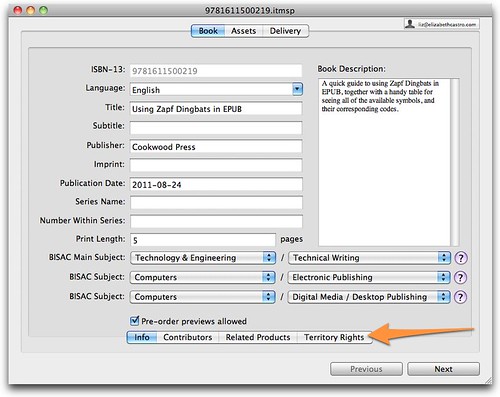
iTunes Producer will show you the information about your book just as it appeared the last time you uploaded it to the iBooksore.

Book info

Click the Territory Rights button at the bottom right. You'll see the original territories that you created when you last uploaded this book. Note that you won't see any territories you may have added through iTunes Connect.

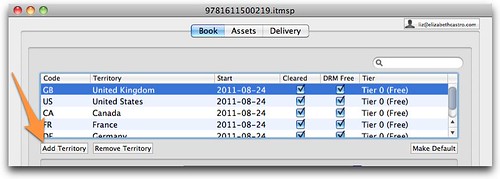
Add territory

Since I had already started adding territories with iTunes Connect, the fact that only the original territories appeared here worried me. But I have found that you can add only the new territories desired in iTunes Producer and it does not override the list of territories in iTunes Connect, it only adds to it. That is, any countries that you added with iTunes Connect but that are not listed here should remain.

Click the Add Territory button just below the list of territories. Only the countries that you have not yet added in Producer will appear. Territories that you added with Connect will also appear. Choose the desired territories that you haven't yet added in either place.

The Territory field with its initial empty contents always flusters me a little, as if I'm supposed to remember which territories there are to type one. But once the cursor is there, simply press the down arrow to get the next one in the list, and then press Return. Remember that you do not have to readd the countries that you already added with Connect.

Note also that if you do add a country that you already added with Connect, the new information will override the old (say, if you changed the price or whatever).

Then add in the rest of the information for the book. You'll find that there is no lag between selections. This is so much nicer!

When you're finished adding territories, click the Next button and make any other desired changes.

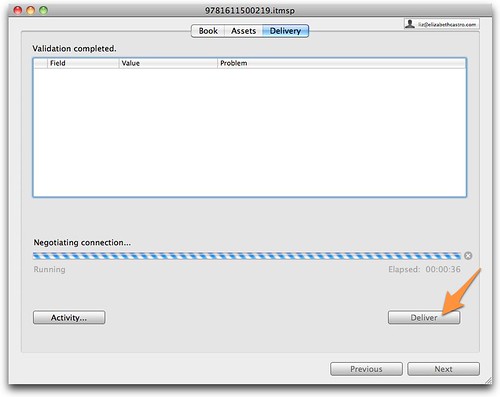
Once you've made all the desired changes, click the Deliver button. (I have to say I always find it disconcerting that iTunes Producer automatically gives me an error on the last page because there are unsaved changes, and then automatically goes about saving those changes and eliminating the error.)

Deliver

When you get the nice big green arrow, go on over to iTunes Connect to confirm that everything's the way you want it.

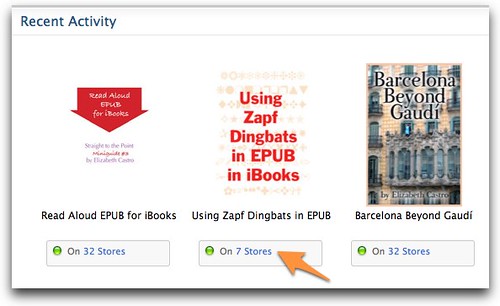
It may take a few minutes for iTunes Connect to update the information. Note, in this example, that I have uploaded all of the remaining 25 territories to this record but the first 7 that I had added in iTunes Connect are still the only ones that appear.

iTunes Connect

After a minute or two, I saw that iTunes Connect had reordered my books (ostensibly to put the ones with the most recent changes at the front of the list), and now lists the 32 markets in which my book may be purchased.


Many thanks to David Fox for alerting me to this much faster and better system!


More of my books