Thanks to all who have bought my Audio and Video in EPUB miniguide. The response has been overwhelming and I am really honored. I hope you're finding it useful.
Over the weekend, thanks to feedback from Barnes & Noble, I figured out how to get audio to work in both the iPad *and* NOOK Color, without having to resort to mp3 files: you create an m4a audio file and make sure to declare it in the OPF file as audio/m4a.
You might ask why I worry about NOOK Color at all if independent and self-publishers are not yet allowed to sell enhanced ebooks through Barnes & Noble's PubIt program. The answer is that I believe that it's important for your ebooks to work in as many platforms as possible. If there's a code that works in more than one place, that's the code we EPUB developers should be using. B&N doesn't accept enhanced ebooks now, but they may well do so in the future. And your books will be ready. In addition, you can always sell your enhanced ebooks on your own website, and you will want them to be usable in as many ereaders as possible. Finally, using universal code never hurts, it only helps.
I have updated the Audio and Video in EPUB miniguide to reflect this change, as well as some minor edits--including the erroneous holdover paragraph in the introduction that said I was offering the miniguide for free to current owners of my EPUB Straight to the Point book. The truth is that I dithered about how to offer this Audio and Video in EPUB miniguide right up to the last moment, although in the end, I decided not to give it away, but to sell it for $5. Sorry for the confusion.
I have sent download instructions for the updated version of the miniguide to all those who bought it already. If you don't get them, feel free to drop me a line and I'll send it to you again. I have also updated the file that is available from my store, so that if you buy the guide now or in the future, you'll automatically get the new version. It's labeled May 23, just in case you want to confirm.
As always, let me know if you have any doubts or questions.
Showing posts with label Barnes and Noble. Show all posts
Showing posts with label Barnes and Noble. Show all posts
Monday, May 23, 2011

Tuesday, May 17, 2011
Audio and Video in EPUB - New Straight to the Point Miniguide #2
One of the most obvious and impressive advantages that electronic books have over their print counterparts is the ability to contain moving images and sound. While at first the EPUB spec didn't contemplate multimedia much at all, Apple's decision to use the new HTML5
 My new 29 page Audio and Video in EPUB miniguide explains just how to create enhanced ebooks with video and audio files, and includes information about how to choose and set the aspect ratio, format, and size, and then how to embed these multimedia files into EPUB format ebooks that look beautiful and play properly in iPad, iPhone, iPod touch, and also in Barnes & Noble's new NOOK Color.
With the information and techniques you'll learn in my Audio and Video in EPUB miniguide, you'll be able to create enhanced ebooks that satisfy Apple's requirements for the iBookstore, and if Barnes & Noble ever accepts enhanced ebooks from independent and self-publishers, which it doesn't yet, but it may someday, your code will pass muster there as well. Of course, you can also sell ebooks directly from your own website (as I do), and thanks to this guide, they'll look good in whatever ereader your audience has.
One of the cool things about tablets like the iPad and NOOK Color is that they make sense for viewing so-called tall screen video, which is taller than it is wide. Tall screen video is great for showing things that are, well, tall. Imagine a video of the Empire State Building or Gaudí's Sagrada Família. Part of this Audio Video miniguide explains how you can create and insert tall screen video in ebooks that again, work in both iOS devices and the NOOK Color.
The Audio and Video in EPUB miniguide costs $5, and includes the 29 page miniguide in EPUB and PDF formats plus several example EPUB files. You can unzip any of the files to look at the code they contain. It is only available directly from me. I hope you enjoy it. One of the things that I love about EPUB is that it enables us all to publish books with very little infrastructure or up-front investment. I think it's about time we were able to create enhanced ebooks as well.
I thought a long time about whether to offer this miniguide for free like I did the Fixed Layout Miniguide in the hopes of encouraging people to buy my EPUB Straight to the Point book. In the end, however, I've decided that this miniguide is worth every penny and more of the $5 I'm asking for it. I hope you'll agree.
As always your comments are more than welcome.
video and audio elements in order to incorporate multimedia in ebooks clearly pushed the EPUB spec in that direction. Barnes & Noble now also supports these same tags for creating enhanced ebooks in its NOOK Color.My new 29 page Audio and Video in EPUB miniguide explains just how to create enhanced ebooks with video and audio files, and includes information about how to choose and set the aspect ratio, format, and size, and then how to embed these multimedia files into EPUB format ebooks that look beautiful and play properly in iPad, iPhone, iPod touch, and also in Barnes & Noble's new NOOK Color. With the information and techniques you'll learn in my Audio and Video in EPUB miniguide, you'll be able to create enhanced ebooks that satisfy Apple's requirements for the iBookstore, and if Barnes & Noble ever accepts enhanced ebooks from independent and self-publishers, which it doesn't yet, but it may someday, your code will pass muster there as well. Of course, you can also sell ebooks directly from your own website (as I do), and thanks to this guide, they'll look good in whatever ereader your audience has.
One of the cool things about tablets like the iPad and NOOK Color is that they make sense for viewing so-called tall screen video, which is taller than it is wide. Tall screen video is great for showing things that are, well, tall. Imagine a video of the Empire State Building or Gaudí's Sagrada Família. Part of this Audio Video miniguide explains how you can create and insert tall screen video in ebooks that again, work in both iOS devices and the NOOK Color.
The Audio and Video in EPUB miniguide costs $5, and includes the 29 page miniguide in EPUB and PDF formats plus several example EPUB files. You can unzip any of the files to look at the code they contain. It is only available directly from me. I hope you enjoy it. One of the things that I love about EPUB is that it enables us all to publish books with very little infrastructure or up-front investment. I think it's about time we were able to create enhanced ebooks as well.
I thought a long time about whether to offer this miniguide for free like I did the Fixed Layout Miniguide in the hopes of encouraging people to buy my EPUB Straight to the Point book. In the end, however, I've decided that this miniguide is worth every penny and more of the $5 I'm asking for it. I hope you'll agree.
As always your comments are more than welcome.
Hyphenation in NOOK Color
What I really wanted to be writing about today was my new miniguide about, uh, well I'll tell you soon, which is all ready to go, but unfortunately not yet available on my shopping cart site. As soon as it is, I'll announce it here. (It's pretty cool :)
Meanwhile, I've been working a lot with the NOOK Color and noticed that it was mangling my headlines, putting hyphens in even though I don't want them, and even cutting off the end of words sometimes. This despite using the standard CSS hyphen controls that I explained in this article here in February.
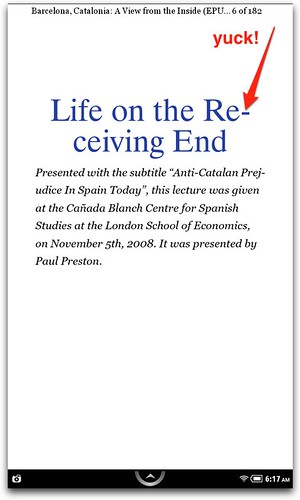
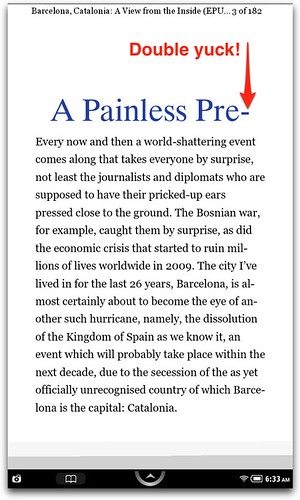
The standard CSS for controlling hyphens is not currently supported by NOOK Color, but thankfully, there was a guy from B&N on Mobile Read who offered a solution. Non-standard CSS, but a solution nonetheless. He says you can add:
in order to force NOOK Color to use an older RMSDK which has a text engine which doesn't do hyphenation.
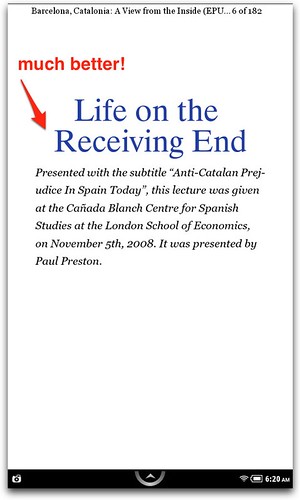
I added it to the rules for the headers in my book and it worked like a charm:
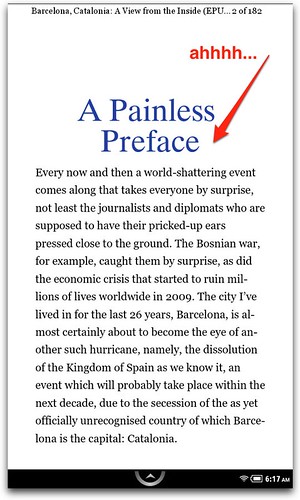
And it doesn't seem to have a deleterious affect in iBooks (or indeed, any effect at all):
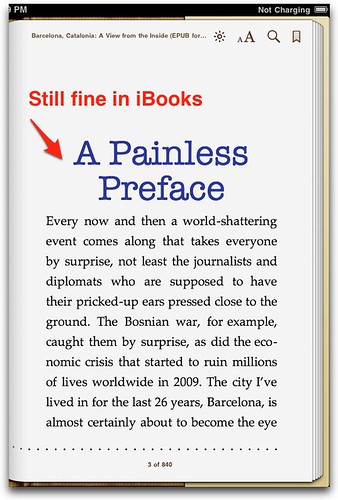
Meanwhile, I've been working a lot with the NOOK Color and noticed that it was mangling my headlines, putting hyphens in even though I don't want them, and even cutting off the end of words sometimes. This despite using the standard CSS hyphen controls that I explained in this article here in February.
The standard CSS for controlling hyphens is not currently supported by NOOK Color, but thankfully, there was a guy from B&N on Mobile Read who offered a solution. Non-standard CSS, but a solution nonetheless. He says you can add:
adobe-text-layout: optimizeSpeed;in order to force NOOK Color to use an older RMSDK which has a text engine which doesn't do hyphenation.
I added it to the rules for the headers in my book and it worked like a charm:
And it doesn't seem to have a deleterious affect in iBooks (or indeed, any effect at all):
Tuesday, April 19, 2011
Resizing images in EPUB
Some time ago, a reader wrote to tell me that I had gotten the code wrong for resizing images in my EPUB Straight to the Point book. At first, I thought he was right, but at second and third glance, I realize that he wasn't.
The problem is that the iPad doesn't recognize when you add width information directly to a
First, let's look at how CSS deals with images. An image has an intrinsic size, that is, its actual size in pixels. If you don't apply width or height information to the image, either in the HTML or the CSS, the image will appear at its original size. CSS allows you to set the height and the width of an image explicitly in pixels, or as a percentage of a parent element. This means that if you set the width of an image to 50%, the image should be displayed at 50% of the width of the element in which the image is contained, not 50% of the image's original width.
Here's what it looks like in Firefox. The image takes up half of the window width since its ancestor element is the
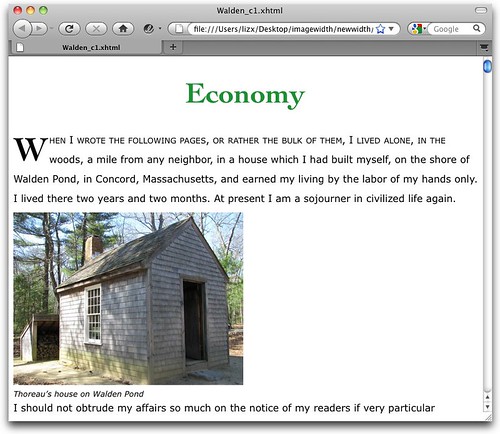
Enter iBooks. Unfortunately, iBooks has a bug that ignores a width explicitly set for an
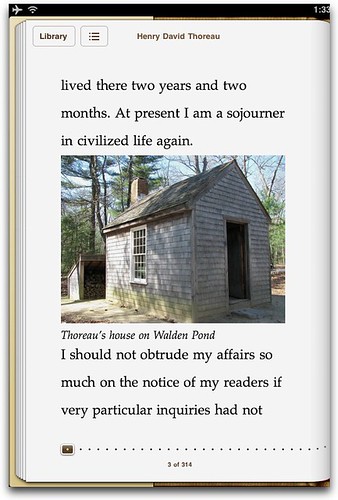
The first part of the solution, as a I describe in EPUB Straight to the Point, is to enclose the
But observe what happens if you remove the
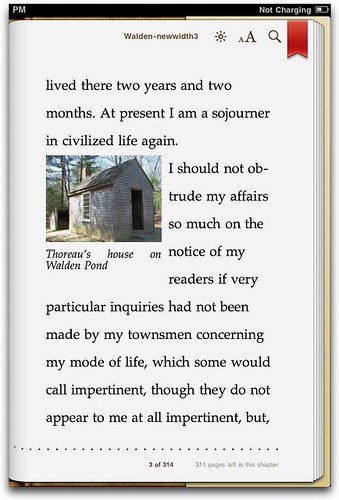
But iBooks, as we noted, doesn't follow the CSS spec. However, and this is a big however, Firefox, Safari, and Adobe Digital Editions—and all of the ereaders based on ADE, like the Sony Reader and Barnes & Noble Nook—do follow the spec.
The spec says that, by default, if a replaced element, like an image, is too big for its container (say, a
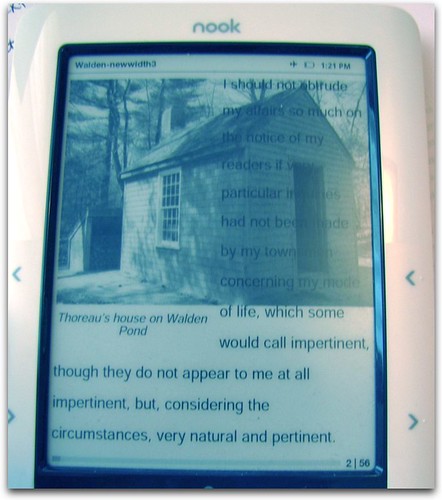
As you can see, the
The second part of the solution, (also contained in EPUB Straight to the Point) is to set the width of the
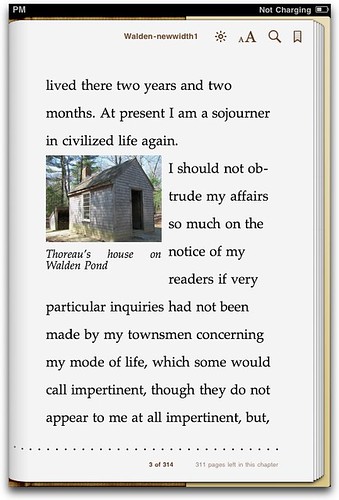
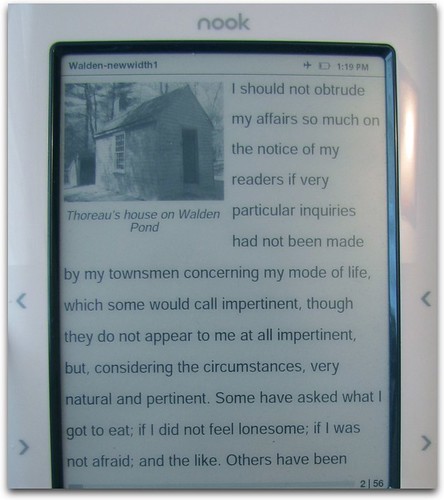
At some point, I had suggested using
The problem is that the iPad doesn't recognize when you add width information directly to a
img element. That is non-standard behavior (read: a bug) and should be fixed.First, let's look at how CSS deals with images. An image has an intrinsic size, that is, its actual size in pixels. If you don't apply width or height information to the image, either in the HTML or the CSS, the image will appear at its original size. CSS allows you to set the height and the width of an image explicitly in pixels, or as a percentage of a parent element. This means that if you set the width of an image to 50%, the image should be displayed at 50% of the width of the element in which the image is contained, not 50% of the image's original width.
Here's what it looks like in Firefox. The image takes up half of the window width since its ancestor element is the
body. So far so good. Enter iBooks. Unfortunately, iBooks has a bug that ignores a width explicitly set for an
img element. Just completely ignores it: The first part of the solution, as a I describe in EPUB Straight to the Point, is to enclose the
img in a div and then set the width of the div to the desired width, either in pixels or as a percentage.But observe what happens if you remove the
width property from the img and apply it to the div that contains the img. In iBooks it (erroneously) works as you want it to:But iBooks, as we noted, doesn't follow the CSS spec. However, and this is a big however, Firefox, Safari, and Adobe Digital Editions—and all of the ereaders based on ADE, like the Sony Reader and Barnes & Noble Nook—do follow the spec.
The spec says that, by default, if a replaced element, like an image, is too big for its container (say, a
div that you've reduced by half) then the image spills out over the edges. That is, it displays just the same. What the spilled out part (the overflow) doesn't do is affect the layout. Which means that any surrounding text just runs over it as if it weren't there. It's ugly.As you can see, the
div has been reduced to 50% of the width of the window, but the image is unaffected. By default, overflow is visible, but doesn't affect the flow of the page, which is why that text just rolls right over it. Ick.The second part of the solution, (also contained in EPUB Straight to the Point) is to set the width of the
img element to 100% of its parent, in this case, the div. Since the div is 50% of the width of the window, and the img is 100% of the div, then the img will also be set to 50% of the window. This works in both iBooks and more standards-compliant ereaders:At some point, I had suggested using
max-width instead of width but that only works in iBooks, not the other ereaders. In other words, it's no solution.
Tuesday, April 12, 2011
Embedding Fonts in EPUB- iPad, iPhone AND nook
I don't know how I missed this. I did see that Apple had published a new iBookstore Assets guide in late March, and I looked through the “changes in version 4.6” section pretty closely. But today I noticed something new: iBooks now supports embedded fonts even in regular, reflowable, non-fixed layout EPUBs.
That's not all. I noticed while I was testing this feature that Apple no longer restricts embedded fonts to non-special tags, as I describe on page 140 of my EPUB book. This is a really big deal, and means you can forget the ugly hacks previously required to get them to appear. If you want to use any of the 33 font families that come pre-installed in iOS (they are listed with samples in my book), you can simply call them in the CSS rule (skipping @font-face and the special file explained below).
And, and, and that's still not all. The really cool part is that the same code works on the nook too. Ooh, cross-platform font embedding in EPUB. I like it!
Here's how to embed fonts into an EPUB book:
First, add the font to your book files in the normal way, by adding an
That makes the font available. To apply it to your text, you have to add it to one of your styles, also in the CSS:
And then make sure your HTML actually uses one of those styles:
The last step is to add a com.apple.ibooks.display-options.xml file in your META-INF folder. (If you don't know where that is, my EPUB book will be helpful.) The com.apple.ibooks.display-options.xml file is required for Fixed Layout EPUBs, but it looks like Apple is expanding its use.
The file should have a line like this one:
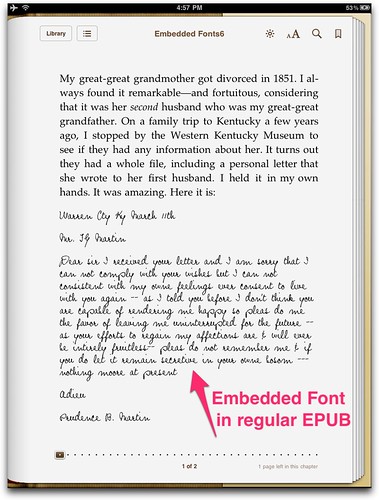
Put it all together, and you can get something like this:
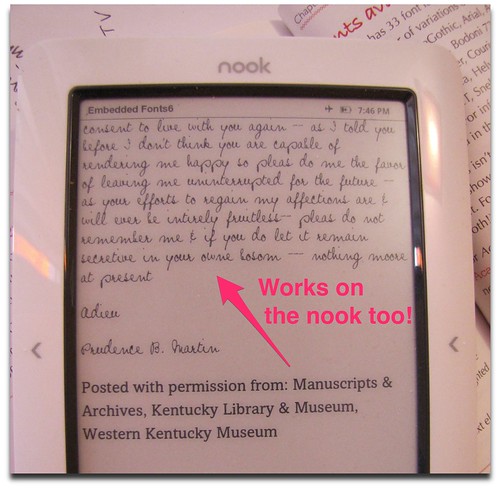
Here's what it looks like on the nook (which I wish allowed screenshots!)
The font that I used is pretty similar to my great-great-grandmother's handwriting, and was designed by Michael Tension from Tension Type, and generously made available on Dafont.com. Remember to check font licenses before embedding them in your EPUB files.
Finally, if you're curious, you can see the original letter too.
And perhaps more importantly, you can download the sample file (I don't guarantee that it's free of that pesky iTunesMetadata.plist file.)
That's not all. I noticed while I was testing this feature that Apple no longer restricts embedded fonts to non-special tags, as I describe on page 140 of my EPUB book. This is a really big deal, and means you can forget the ugly hacks previously required to get them to appear. If you want to use any of the 33 font families that come pre-installed in iOS (they are listed with samples in my book), you can simply call them in the CSS rule (skipping @font-face and the special file explained below).
And, and, and that's still not all. The really cool part is that the same code works on the nook too. Ooh, cross-platform font embedding in EPUB. I like it!
Here's how to embed fonts into an EPUB book:
First, add the font to your book files in the normal way, by adding an
@font-face statement at the beginning of your CSS, something like this:@font-face {
font-family: Prophecy Script;
font-style: normal;
font-weight: normal;
src:url("Fonts/Prophecy_Script.ttf");
}That makes the font available. To apply it to your text, you have to add it to one of your styles, also in the CSS:
p.letter {

    font-family: "Prophecy Script";

    font-weight: normal;

    font-style: normal;

    font-size: 1em;

    margin: 1em 0 0 0;

    -webkit-hyphens:none;

}
And then make sure your HTML actually uses one of those styles:
<p class="letter">Warren Cty Ky March 11th</p>The last step is to add a com.apple.ibooks.display-options.xml file in your META-INF folder. (If you don't know where that is, my EPUB book will be helpful.) The com.apple.ibooks.display-options.xml file is required for Fixed Layout EPUBs, but it looks like Apple is expanding its use.
The file should have a line like this one:
<option name="specified-fonts">true</option>Put it all together, and you can get something like this:
Here's what it looks like on the nook (which I wish allowed screenshots!)
The font that I used is pretty similar to my great-great-grandmother's handwriting, and was designed by Michael Tension from Tension Type, and generously made available on Dafont.com. Remember to check font licenses before embedding them in your EPUB files.
Finally, if you're curious, you can see the original letter too.
And perhaps more importantly, you can download the sample file (I don't guarantee that it's free of that pesky iTunesMetadata.plist file.)
Monday, October 4, 2010
Publishing Ebooks on Barnes & Noble
Barnes & Noble has recently made it possible for self-publishers to upload and sell ebooks for Nooks and the Nook app on the iPad and iPhone—through their Pubit! system. I was particularly interested in this development, because Barnes & Noble supports EPUB format—the open source, non-proprietary format for ebooks.
To sign up for Pubit!, you have to have a US Tax id (a social security number or Employer ID number), a credit-card from a US bank, and a US bank account to which your earnings will be sent. These are almost, but not quite, insurmountable obstacles for non-US residents.
There was one thing in the Terms & Conditions that caught my eye. First, while you set the List Price for your books (upon which your royalties are based), you agree to give Barnes & Noble “sole and complete discretion” over the price they charge your customers. I can’t quite explain why that rankles, though I know I hate giving anyone “sole and complete discretion” over anything of mine!
Next, they’ll pay you 65% of the List Price if that price is between $2.99 and $9.99, but only 40% if the List Price is less than $2.98 or more than $10. It seems that, like Amazon, which has a similar tiered system (70% for the midrange and 35% for very cheap or very expensive), they want to pressure you into keeping the price within a certain range: not so cheap that it’s not worth their while, not so expensive that they end up storing your files for an eternity with no sales in sight.
The excellent news is that you can upload EPUB files directly, which means you have complete control over the layout (and can take advantage of the tips in my EPUB book). However, if you don't have an EPUB file, you can also upload Microsoft Word docs (DOC and DOCX), HTML, RTF, and plain-text documents, all of which will be automatically converted to EPUB.
You can decide whether or not to apply DRM, though once you upload a book, you can't change your mind about DRM. What I'd like to know is whether non-DRM books uploaded through Pubit and bought through Barnes & Noble can really be read on any EPUB compatible ereader (like say iBooks on the iPad). I'll work on testing that and report back.
Book files can't be larger than 20Mb.
It’s nice that you don't need an ISBN, the international book number that booksellers use to keep track of a book within their channels. B&N will assign an “internal” 13-digit number (presumably not an ISBN) to your book.
Curiously, Barnes & Noble says you can only upload books in one of the following languages: English, Spanish, French, German, Italian, Portuguese, Latin, and Dutch. This seems a rather arbitrary limitation. Why not Catalan, or any of the Scandinavian languages, which can all be properly represented with the character set that the Nook already supports?
To sign up for Pubit!, you have to have a US Tax id (a social security number or Employer ID number), a credit-card from a US bank, and a US bank account to which your earnings will be sent. These are almost, but not quite, insurmountable obstacles for non-US residents.
There was one thing in the Terms & Conditions that caught my eye. First, while you set the List Price for your books (upon which your royalties are based), you agree to give Barnes & Noble “sole and complete discretion” over the price they charge your customers. I can’t quite explain why that rankles, though I know I hate giving anyone “sole and complete discretion” over anything of mine!
Next, they’ll pay you 65% of the List Price if that price is between $2.99 and $9.99, but only 40% if the List Price is less than $2.98 or more than $10. It seems that, like Amazon, which has a similar tiered system (70% for the midrange and 35% for very cheap or very expensive), they want to pressure you into keeping the price within a certain range: not so cheap that it’s not worth their while, not so expensive that they end up storing your files for an eternity with no sales in sight.
The excellent news is that you can upload EPUB files directly, which means you have complete control over the layout (and can take advantage of the tips in my EPUB book). However, if you don't have an EPUB file, you can also upload Microsoft Word docs (DOC and DOCX), HTML, RTF, and plain-text documents, all of which will be automatically converted to EPUB.
You can decide whether or not to apply DRM, though once you upload a book, you can't change your mind about DRM. What I'd like to know is whether non-DRM books uploaded through Pubit and bought through Barnes & Noble can really be read on any EPUB compatible ereader (like say iBooks on the iPad). I'll work on testing that and report back.
Book files can't be larger than 20Mb.
It’s nice that you don't need an ISBN, the international book number that booksellers use to keep track of a book within their channels. B&N will assign an “internal” 13-digit number (presumably not an ISBN) to your book.
Curiously, Barnes & Noble says you can only upload books in one of the following languages: English, Spanish, French, German, Italian, Portuguese, Latin, and Dutch. This seems a rather arbitrary limitation. Why not Catalan, or any of the Scandinavian languages, which can all be properly represented with the character set that the Nook already supports?
Subscribe to:
Posts (Atom)

