Showing posts with label Amazon. Show all posts

Thursday, January 24, 2013

We're not the media if we depend on Google (or Amazon)

Update: 25 January 2013. This morning when I typed Catalonia into the Google Search box, and then clicked the News tab, all of the stories about the Declaration of Sovereignty were hidden behind an even smaller "+ Show more" link below the generic AP post carried by the Huffington Post. If I click on "All 88 news sources" I get this complete fail:

Google can't find Catalonia

Maybe there is a conspiracy!

I've also changed the headline of this article from "We're not the media if we don't appear on Google (or Amazon)" to "We're not the media if we depend on Google (or Amazon)". We need an alternative.


Yesterday there was a news story I was particularly interested in. But searching for it on the internets made me rethink a lot of assumptions about the idea that "we are the media". I first heard that expression used by Amanda Palmer, a singer/songwriter/artist who ran an incredibly successful crowdsourcing campaign a few months ago—raising over $1 million—to fund a new record. One of her most intoxicating claims was that she didn't need to sign with a studio, and she didn't need to follow a studio's rules and directives. With the support of individual people—me included—she could put out her record and go on tour. In short, she and "we are the media".

I've been writing books for the last 20 or so years with the same idea in mind. My HTML books helped people realize that they could publish their ideas, their writings, their photographs, their lives without having to ask for anyone's permission. At first, I published a gallery of these brand new websites, and I loved going through them and seeing democracy in action: all these people sharing their thoughts with the world, with no gatekeepers to stand in the way.

The gallery quick grew to multiple pages of lists, and the web to billions, and so I left the job of cataloging these new creations to the brand new Google. I'll get to that in a moment.

A few years ago, when I discovered EPUB, I had the same feeling of democratic excitement: here was a technology that could help people publish and otherwise share their writings. We humans yearn to share our stories with others. EPUB, an open format, facilitates such an interchange.

But yesterday, it really hit home how far we are from complete democracy of content. And that's because though we may have the technology and even free tools for creating webpages and ebooks, there are massive economic and political powers that stand between us and our readers. We cannot ignore them. Let me show you yesterday's example.

First, let me admit that the word I typed into Google was "Catalonia". But the ramifications go way beyond this particular news item. So, please bear with me as I use my favorite example to illustrate something much larger.

When I type in "Catalonia", Google says there are 83 news items. When I ask Google to show me "all 83 news sources", it gives me a list of only 16. You can try this at home.

Down at the bottom of the page, Google has a little disclaimer that says it omits some entries that are "very similar to those already displayed". And this is probably not the right time to discuss wire services and the sad fact that a single mediocre story with no byline about a small, new far away country might be reproduced verbatim, with no fact chacking, in 80 or so American newspapers. But I digress. But if you click "repeat the search with omitted results included" Google still only displays 25 items. There is no way to see all 83.

Google's "Full Coverage"

I would very much like to know which other 58 news sources are reporting on my topic. Why won't Google show me? And how does it decide which 25 items to show? And isn't it a problem that I am necessarily limited by Google's criteria?

Do I think there's a conspiracy to keep the other 58 news sources from being revealed? Probably not, but regardless, it bothers me quite a bit that there's no way to get to them. Like it or not, we are not the media, if we cannot be Googled.

And it doesn't stop there. Amazon recently decided that authors of the same genre books cannot review other authors' books. Amazon became successful because of its review system. I am not the only person who used to look at Amazon reviews in order to decide which book to find from the library. Amazon's reviews were an amazing crowdsourcing adventure, now run amok by enterprising and back-stabbing authors on the one hand, and Amazon wanting to watch the gates, on the other.

And don't even get me started on Amazon search. How much publisher money is behind Amazon's search results? I have no idea, but I'm guessing it's not insignificant. We are not the media if we don't come up on Amazon.

The Amazon review issue brings up yet another aspect of this whole story, which I touched on in an essay titled "If you know it already, don't tell". The basic gist of that article is that we believe people more when we don't think they have an axe to grind, even if, ironically, as in the case I describe, the person isn't particularly knowledgeable at all about the topic.

This is the same conundrum that Amazon's new policy throws at us, and that Porter Anderson confronted in his recent post in On the Ether. Where is the line between enough knowledge about a subject in order to give a reasoned opinion and so much knowledge about the subject that your opinion is biased? In this day and age when every one's past opinions are documented publicly, can there even be unbiased opinions? I think not. I believe that the important thing is to know what the opinion is, so we can use that information to assess the validity of the opinion. Suppressing all the opinions that Amazon has decided fall into a particular category of user solves nothing.

In these heady times in which self-publishers, and the web designers that came before them, are gleeful with democratic information sharing, we must be absolutely aware that the gatekeepers have simply moved the gates. Whereas in earlier eras we couldn't even publish without their help, now we can publish, only to find our sites and books hidden in a sea of information. Even if your book or website is in there, if Google or Amazon or whatever search product of the moment won't bring it up, it's as if it weren't there.

All is not lost. Twitter, and to some degree Facebook as well, are still amazingly democratic, allowing us to connect directly with kindred spirits all over the world. While we can't forget that social media still generates only a fraction of web traffic (on the order of 5-6%), I think its influence goes far beyond those numbers, if only in its ability to connect people and movements. But will they last? And Kickstarter (and for example, the Catalan crowdsourcing site Verkami) are great at helping us harness the power of hundreds (or thousands if you're Amanda Palmer) to offer alternatives to these gatekeepers or, when need be, attract their attention. Technology-wise, the use of accurate metadata can also help make a book or website "findable".

Ironically, it is the very birth of Google that gives me hope. Way back then, Altavista was the most popular search engine, and I remember being increasingly frustrated with its ads, its promoted links, and the seemingly deliberate obstacles that it placed between me and what I was looking for. This clean, lithe little ad-free Google came along and all of a sudden we could find things again. It felt like the whole world changed over to this little search engine that actually worked in a matter of weeks. Perhaps it's time for some new disruption.

And while we wait (or develop) the tools to maintain our democratic web, we must be careful to be aware that right now there is no unbiased opinion, and no unbiased search.


Thursday, August 2, 2012

Kindle Previewer Bug

I noticed today that when I change preview devices from Kindle to Kindle Fire, Kindle Previewer shows a very strange PDF-style view of my book. Watch this video and you'll see.

Notice that I start by opening a book and viewing it with Kindle Fire. Then I switch to Kindle Touch (looks fine), to Kindle (looks fine), back to Kindle Touch (looks fine) and to Fire (looks fine). But if I go back to Kindle (still looks fine) and then jump to Fire, it shrinks the ebook and displays it at a tiny size that does not respond to font-size changes.


The solution is to open the book again. Hopefully Amazon will get this fixed soon.

Tuesday, May 29, 2012

Print on Demand, Indie Publishing, and Europe

I've been writing about how to create ebooks for the past two years, but I am well aware that ebooks, even in the United States where they are most popular, only account for some 20% of the market, and in many places, much less. For a small publisher to get a foothold, it's really important to offer print versions as well.

The answer for many indie publishers has been print on demand. For the last ten years or so, Lightning Source, a subsidiary of Ingram (a major book distributor in the US and in Europe), has let publishers upload books to their system and then print them as orders come in. They used to distribute them equally well to Amazon, to Barnes & Noble, to Baker & Taylor, and indeed to any bookstore who wanted one.

Last year, thanks to the information gleaned from Aaron Shepard's POD for Profit, and the Publishing-Update email list that he hosts, I opened an account with Lightning Source and began publishing my first print books: Barcelona, Catalonia: A View from the Inside by Matthew Tree, What Catalans Want by Toni Strubell and Lluís Brunet, and then some books of my own, Read Aloud EPUB for iBooks and From InDesign CS 5.5 to EPUB and Kindle.

At first, everything went as promised. In my tests in March, I ordered Matthew's book from Amazon and it was printed and delivered with 48 hours.

But some time during the summer, Amazon changed the way it handled Lightning Source books, in favor of its own POD service, CreateSpace. Aaron and his community were the first to notice that Lightning Source books were suddenly not "in stock" on Amazon, but instead would ship in 1-3 weeks. This, of course, is a killer for any book. Part of Amazon's strength is its reliance on impulse buying, and 1-3 week delivery does not inspire anyone to buy a book right away. At the same time, CreateSpace books were always in stock.

Aaron developed a system called "Plan B" for dealing with this issue, which involved publishing books through both CreateSpace (to get the best availability on Amazon) and Lightning Source (so that books would also be available to Barnes & Noble, Baker & Taylor, and independent bookstores. I heartily recommend going through it carefully.

I have followed the Plan B system with my own books with success, but was still frustrated at the inavailability of Lightning Source books on Amazon outside the US. I sell a full 50% of my electronic versions of my books outside the US and I'm sure that print books would also sell abroad if I could only get them there. The deteriorating relationship between Lightning Source and Amazon meant that my books were available through Lightning Source's impressive list of distributors, but had 1-3 week shipping times from Amazon UK, Spain, France, Germany, and Italy.

It was really frustrating.

So, I was really excited to hear that Amazon's Print on Demand service, CreateSpace, is now available in Europe. If you already have your book available on Amazon CreateSpace in the US, you just have to go CreateSpace and activate your European markets. It's quite simple. And your book will be guaranteed in stock throughout Europe.

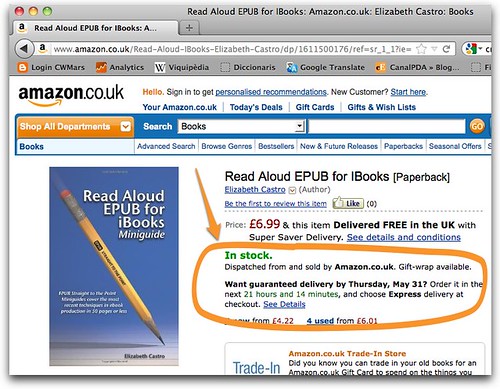
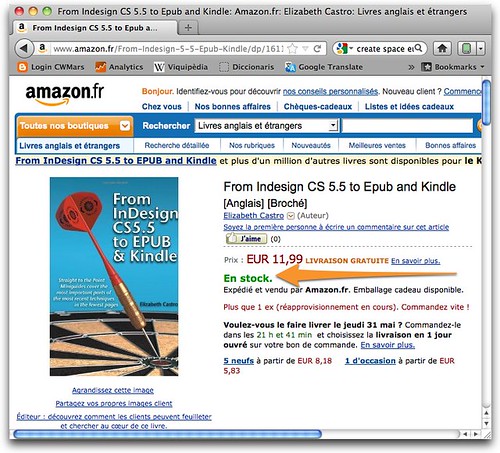
So, now you can buy Read Aloud EPUB and From InDesign CS 5.5 to EPUB and Kindle in print from Amazon all over Europe (in English and Spanish!), as well as my books about Catalonia.

In Stock

Instock france

Friday, April 27, 2012

Word for Mac can't generate linked TOCs for Kindle

I've been trying to document the simplest way to create an ebook with a tool that most folks already own. The tool I've chosen, Microsoft Word, is a bloated, impossibly complicated piece of software that for some inexplicable reason, is used by a huge proportion of the populace. Feel free to enlighten me about its virtues in the comments.

Anyways, I want to call your attention to one particularly important failing of Microsoft Word for Macintosh: it will only create linked or active TOCs if the TOC contains page numbers. It's really important to include linked TOCS in ebooks, and particularly in Kindle books since most of Kindle devices don't have device-generated or navigational tables of contents, but it doesn't make sense to include page numbers (since they don't make any sense in a digital landscape).

Note that Microsoft Word for Windows is happy to automatically generate a useful TOC, sans page numbers, for an ebook.

Table of Contents

Simply uncheck Show page numbers and then check Use hyperlinks instead of page numbers.

Now look at the corresponding dialog box in the latest version of Word for Macintosh:

Table of Contents

You can hide the page numbers, but you can't convert them to hyperlinks, and I assure you, after much testing (and confirmation from @ljndawson), that without page numbers, no page links will be created. The TOC is there, but will take you nowhere in the converted ebook.

Kindle Fire Previewer - testerTOC7

It makes Word for Mac a much less powerful tool for creating ebooks. Of course, there are solutions (like manually creating bookmarks for each TOC entry), but it's nothing like a one-button solution (!).

Why should anyone care about how Word creates TOCs? Because Word (.doc or .docx) is the one styled format that can be read and converted automatically into Kindle format (using KDP, Send to Kindle, and by emailing the document to a Kindle device). More on that soon.

Wednesday, April 25, 2012

Using Amazon's Send to Kindle to transfer ebooks and documents to Kindle

Amazon has just released the Send to Kindle app for Macintosh. It already exists for PCs. This is an app that facilitates getting documents in various formats—Word (.doc and .docx), text (.txt), RTF (.rtf), images (.jpeg, .gif, .png, .bmp) and PDF (.pdf)—to your Kindle.

Once you've downloaded and installed Send to Kindle, you can activate the app in several different ways. First, you can right-click a document in the Finder and choose the Send to Kindle option near the bottom of the menu.

From Finder

You can choose Send to Kindle from the Printer menu in any program that has one (here's Word):

Print - Send to Kindle

Finally, you can click the Send to Kindle icon on the dock or drag a document to the Send to Kindle icon directly.

Dock

Whichever method you choose, you'll see the Send to Kindle's window in which you can specify a new title for the document and choose which Kindle you want to send the document to. You will also specify whether you want to use free Wifi or incur extra charges by using Amazon's Whispernet service.

Send to Kindle

If you check "Archive document in your Kindle Library" (which is on by default), your document will be available in the Kindle cloud, and thus to all of your Kindle devices. You can even deselect a device and send your document only to the cloud.

Format

Notice at the bottom of the window that you'll be advised about which format your document will be converted to. If you right-click or drag and drop, Send to Kindle will convert Word, text, and RTF to Kindle format, and preliminary testing seems to indicate that it uses the same KindleGen algorithms that are used by Kindle Previewer and KDP. If you right-click or drag and drop a PDF file, you'll have the option (in the aptly named Options panel) to convert the PDF to Kindle format. I tested some simple documents, and it seemed to work quite well.

Send to Kindle - Options-1

If you use the print option, it will always send the document as a PDF, and the PDF cannot be converted to Kindle format. Note that the PDF document will be much larger than the Kindle version.

Send to Kindle - Options

All in all, the Send to Kindle app looks like a useful tool for getting documents into your Kindle. The Send to Kindle documentation has a few more details.


Monday, February 27, 2012

Metadata in iBooks, iBookstore, iTunes Producer, InDesign, and Amazon

I got an email today asking how to set the subject keywords for an ebook in InDesign. That part is relatively easy. You choose File > File Info, and add the desired keywords to the Keywords field, separating each keyword from the next with a comma or semicolon:

Metadata Keywords InDesign

But what happens when InDesign exports to EPUB? I'm happy to report that it does exactly what it should and converts those keywords into dc:subject elements in the OPF file:

Metadata in content.opf

Now, I'm no expert on metadata, so I have not made it a point to use standard BISAC book categories for describing the subject of my books in those fields. We'll come back to this.

When you upload your book to Apple's iBookstore, you have the option of entering BISAC data in iTunes Producer:

Metadata in iTunes Producer

And that data entered in iTunes Producer overrides whatever you entered in the content.opf file (or InDesign for that matter). When someone downloads your book, they will only see the Main BISAC category (although the original keywords remain in the content.opf file inside the book):

Metadata in iBooks

And as far as I can tell with this single example (though I've heard other anecdotal evidence also in support), the iBookstore does not use the keyword metadata to help aid searches for your book. Notice for example a search for GREP, which I specified as one of the keywords for this book:

Metadata in iBookstore

iBookstore fails to return my book when searching for "GREP", even though the book contains "GREP" as a subject keyword.

For the record, my book does appear when searching for "InDesign" and "EPUB", presumably since those words are also in the title.

Then I switched over to Amazon to check what happens there. I also had to enter the BISAC categories when uploading my book to Amazon. In addition, they let me enter up to 7 keywords.

KDP Metadata

Amazon doesn't list a category next to a book on the Kindle. When I search for InDesign and EPUB, my book appears (as it should, since those words are in the name). More importantly, when I search for "GREP" on Amazon, my book also appears:

Amazon.com: grep

Now, I am not at all sure whether Amazon is paying attention to my specified dc:subject elements or more probably to the keywords that I specified above. But either way, it gets points for finding the book.

Seems like you can't hurt anything by adding the metadata in InDesign and/or directly in the EPUB file, but it is far from conclusive whether or not it helps. I wonder if other ebook distributors pay attention to the dc:subject elements. Does anybody know?

Finally, Apple iBookstore clearly has a long way to go towards being a useful tool for discovering books you're interested in. That it completely ignores metadata categories and gives you no other method for specifying them is pretty lame, to say the least.

Tuesday, February 21, 2012

Amazon Algebra

Amazon doesn't give sales figures for Kindle devices. I think they should.

When asked directly by Steven Levy in Wired magazine “How many Kindles have you sold?”, Jeff Bezos gave a "long, loud example of his famous laugh" before replying “I know you don't expect me to [give an answer]".

I do expect an answer. There are too many of us dependent on those numbers. Piqued, I went through Amazon's press releases for the past few years, and gathered up these tidbits of information. I'm not sure they reveal much, except facetiousness and a love of algebra. Why don't they tell us more? You'd think they have something to hide!

iOS = 316 million

For the record, Asymco recently reported that Apple said it had sold 55 million iPads to date, along with 261 million iPhones and iPod touches (all of which can run iBooks).

Note that S generally refers to sales of Kindle devices, B is number of Kindle books available. I've added subscripts when referring to smaller subsets of these groupings. O generally refers to other. Hover above any symbols you don't understand and tooltips with explanations should appear. Links go to original press release on Amazon with cited "data".

Can you discern anything useful in this data?

Sk > So

12/29/11: Holiday Bestsellers, Amazon.com only Electronics: Kindle Fire; Kindle Touch; and Kindle

S > 1,000,000 * 4

12/29/2011: Throughout December, customers purchased well over 1 million Kindle devices per week

S > 2,000,000 + 2,000,000

12/29/2011: customers purchased millions of Kindle Fires and millions of Kindle e-readers

Skf > So

11/28/2011: the popular Kindle Fire remained the bestselling product across all of Amazon since its introduction 8 weeks ago...

S2011 = 4 * S2010

11/28/2011: customers purchased 4X as many Kindle devices as they did last Black Friday

Ske = 2*Spl

10/25/2011: In the three weeks since launch, orders for electronic ink Kindles are double the previous launch. And based on what we're seeing with Kindle Fire pre-orders, we're increasing capacity and building millions more than we'd already planned.


SK3g > SOK

P3g = $139

7/26/2011: Kindle 3G with Special Offers has quickly become our bestselling Kindle at only $139...

Sgk2q > Sg1q

7/26/2011: Sales growth of Kindle devices accelerated in second quarter 2011 compared to first quarter 2011

B > 950,000

The U.S. Kindle Store now has more than 950,000 books


B > 900,000

4/26/2011: The U.S. Kindle Store now has more than 900,000 books

S > 2,000,000

1/27/2011:after selling millions of third-generation Kindles with the new Pearl e-ink display during the quarter, Kindle books have now overtaken paperback books as the most popular format on Amazon.com...

Sb = 1.15*Spb

1/27/2011:Since the beginning of the year, for every 100 paperback books Amazon has sold, the Company has sold 115 Kindle books

Sb = 3*Sph

1/27/2011: Additionally, during this same time period the Company has sold three times as many Kindle books as hardcover books

Sk3 > SHP

1/27/2011: the third-generation Kindle eclipsed "Harry Potter and the Deathly Hallows" as the bestselling product in Amazon's history.

B > 810,000

1/27/2011: The U.S. Kindle Store now has more than 810,000 books

S12 > Sol

10/21/2010: More new generation Kindle devices were ordered in the first twelve weeks of availability than in the same time frame following any other Kindle launch.
S > So

10/21/2010: In addition, in the twelve weeks following the introduction of the new generation of Kindles, customers ordered more Kindle devices on Amazon.com and Amazon.co.uk than any other product.

Sk4 > Spl

8/25/2010: more new generation Kindles were ordered in the first four weeks of availability than in the same timeframe following any other Kindle launch

Sb = 1.43*Sh

7/22/2010: Over the past three months, for every 100 hardcover books Amazon.com has sold, the Company has sold 143 Kindle books

Sb = 1.8*Sh

7/22/2010: Over the past month, for every 100 hardcover books Amazon.com has sold, the Company has sold 180 Kindle books.

Sb2010/2 = 3*Sb2009/2

7/22/2010: Amazon sold more than 3x as many Kindle books in the first half of 2010 as in the first half of 2009.

GSb > 207%

7/22/2010: The Association of American Publishers' latest data reports that e-book sales grew 163 percent in the month of May and 207 percent year-to-date through May. Kindle book sales in May and year-to-date through May exceeded those growth rates.

Sjp = 1,140,000

Sjpk = 867,881

7/22/2010: On July 6, Hachette announced that James Patterson had sold 1.14 million e-books to date. Of those, 867,881 were Kindle books.

Sb > 2,500,000

7/22/2010: Five authors--Charlaine Harris, Stieg Larsson, Stephenie Meyer, James Patterson, and Nora Roberts--have each sold more than 500,000 Kindle books.

B > 500,000

4/22/2010: The U.S. Kindle Store now has more than 500,000 books

S > 2,000,000

1/28/2010: Millions of people now own Kindles

Sb =0.6 * Sp

1/28/2010: When we have both editions, we sell 6 Kindle books for every 10 physical books.

B > 410,000

1/28/2010: The U.S. Kindle Store now has more than 410,000 books

Sn > So

10/30/2009: November is already the best sales month ever for Kindle, even before Cyber Monday

S > So

U > Uo

10/22/2009: Kindle has become the #1 bestselling item by both unit sales and dollars

B > 360,000

10/22/2009: The U.S. Kindle Store now has more than 360,000 books

P = $299

7/23/2009: Amazon.com reduced the price of Kindle, the #1 bestseller in its consumer electronics store, to $299

B > 320,000

7/23/2009: The Kindle Store offers more than 320,000 books

B > 280,000

5/11/2009: the Kindle Store’s 280,000 books

B > 270,000

4/23/2009: The Kindle Store offers more than 270,000 books

B > 230,000

2/9/2009: More than 230,000 books are now available in the Kindle Store

P = $359

2/9/2009: Introducing Amazon Kindle 2: $359

D > 0

12/31/2008: We’re particularly grateful for the unusually strong demand for Kindle in the fourth quarter.”

S < So


12/26/2008: Top sellers in consumer electronics included Samsung's 52-inch 1080p 120Hz LCD HDTV with RED Touch of Color, the Apple iPod touch 8 GB (2nd Generation) and the Acer Aspire One 8.9-inch netbook (1.6 GHz Intel Atom N270 processor, 1 GB RAM, 160 GB hard drive, XP Home, 6 cell battery), sapphire blue.

B > 185,000

10/22/2008: Kindle selection continues to grow, with available book titles more than doubling since launch to over 185,000


Sb >0.1 * Sa

10/22/2008: Kindle titles already account for more than 10% of unit sales for books that are available in both digital and print formats

B > 115,000

4/23/2008: Kindle selection continues to grow - with more than 115,000 titles now available, up from 90,000 at launch

Sk > 1

B > 90,000

1/30/2008: The Company introduced Amazon Kindle, a revolutionary wireless portable reader that provides instant wireless downloads of more than 90,000 books, blogs, magazines and newspapers

Sk < So

12/26/2007: Top sellers in consumer electronics included the Garmin GPS, Canon PowerShot digital Elph cameras and Samsung LCD HDTVs

P = $399

11/19/2007: Kindle is available starting today for $399...More than 90,000 books are now available in the Kindle Store

Sunday, January 15, 2012

Media Queries for formatting Poetry on Kindle and EPUB

What a tangled web we weave! Amazon wants to maintain support for its legacy ereaders, we all want to support different size ereaders, but nobody supports the code the same way. What to do? One solution is to use media queries, something I've been meaning to explain for months.

A media query lets you create multiple sets of CSS (just what you want to do, right?) and then apply the most appropriate set automatically according to the ereader the ebook is opened in. So, in a single ebook file, there would be various choices of CSS, perhaps one best suited for old legacy Kindles, another for KF8, another for really small screens like iPhones, and yet another for the full-color 9.7” iPad. The ebook would adapt to its environment, giving each user the best possible experience.

That's the theory anyway.

Of course, there are a couple of caveats. Media queries only affect CSS, not HTML, which limits to some degree what can be changed for those ereaders that don't understand a lot of CSS (yes, I'm talking about clunky old mobi). And not all devices of the same screen size support CSS the same way. Ebook designers, like web designers before them, will continue to make multiple versions of the same ebook until the code is standardized. (And don't expect ebook reader manufacturers to adhere to standards without a lot of prodding.)

But media queries do help. Let's see how they work.

Suppose you want to format poetry in your ebook. Poetry is tricky because each line's length must somehow be respected, even in a screen where the line does not fit. The typical solution is to divide each line of poetry into multiple lines, with the 2nd and subsequent lines indented below the first. No matter how narrow the ereader screen, the reader will still be able to identify each line of poetry as a unit.

Let's look at Whitman's O Captain! My Captain! on the Kindle App in a landscape-oriented iPad. (All of these screenshots are from Kindle Previewer, just so I don't have to copy them to a bunch of different devices.) Notice that no matter how short, each line of poetry is displayed on its own line. Poetry doesn't reflow. It's hard to tell from this screenshot, but note that Kindle automatically indents lines of text 40px for Kindle and Kindle for iPad and iPhone, but not for Kindle Fire!

Poetry, little formatting

If we turn the iPad sideways, or make the text bigger, or both, the lines suddenly don't fit. Not only that, the automatic first line indent that Amazon adds makes poetry look particularly bad. It starts being hard to tell what is the second half of a long line, and what is an individual shorter line.

Poetry, vertical

Here's what it looks like on a legacy Kindle (what I'm calling "old mobi"):


Not pretty.

And here's what it looks like on Kindle Fire. Remember that Kindle Fire doesn't have an automatic first-line indent:

Poetry, Kindle Fire

The combination of automatic full justification with no first-line indent and no adjustment for the poetry lines looks particularly bad on the Kindle Fire. It's just a sea of text.

What's the solution? The convention for formatting poetry is to indent the part of the line that doesn't fit. What layout folks call a hanging indent.

You can do this pretty easily with CSS. Add a left margin of say, 2em, which will push the whole line over and then add a negative text-indent of -2em so that the first line starts at the flush left as usual. In this way, each line of poetry will start at the left margin, but any part of the line that overflows will be displayed indented on the second and subsequent lines. Here's the CSS code:

p {line-height: 1;padding:0;margin:0}
p.firstline {margin-top:2em; margin-left:2em; text-indent: -2em;}
p.line {margin-left:2em; text-indent: -2em;}

And here's what it looks like on the Kindle Fire:


I'd certainly want to adjust the general formatting a bit, but now the lines of poetry are at least inteligible.

But if you open it up with a legacy Kindle, it looks pretty bad:

Poetry - bad Kindle formatting

And it looks equally bad on Kindle for iPad:


What's going on?? It turns out that old mobi handles values for text-indent in a very strange way. If you don't set a text-indent value, old mobi automatically indents 40px. If you set a positive text-indent, it will use that instead. (You can use px or em, but if you use em, only whole numbers will work.) But if you set a negative text-indent, it actually creates a hanging indent, with the first line flush left and the second and subsequent indented as much as the absolute value of text-indent. Go figure. That's weird and unexpected, but if you set the left margin at the same time, it all gets mucked up and the details are way too boring to explain. Trust me, you don't want to go there.

To create a hanging indent on old mobi, you use just a negative text-indent, but no left margin. It shouldn't work, but it does.

h1 {text-align: left}
p {line-height: 1} 
p.firstline {margin-top:20px;text-indent:-40px}
p.line {text-indent:-40px}

And here's what it looks like on a legacy Kindle:


That's fine, but look at the same code on a Kindle Fire:


Because of those negative-indents and the lack of an automatic left margin, or whatever hack old mobi used, now our text is cut off. Unacceptable.

So, Kindle Fire and decent EPUB ereaders that support CSS like iBooks want a left margin and a negative text-indent, but old mobi can't handle that combination, being able to use only the negative text-indent.

The answer is to serve different CSS to different ereaders, by way of a media query. I'm going to show you how to do it in an internal stylesheet but the same principles would hold in an external stylesheet.

First, create a regular stylesheet with no media attribute that will contain the styles that should be applied to all versions of the ebook.


<style type="text/css">
    h1 {text-align: left}
    p {line-height: 1;padding:0;margin:0}
</style>


Next, create a second stylesheet with media="not amzn-mobi" in the opening style tag. The stylesheet should include all of the styles that should apply to all ereaders except legacy Kindle. Amazon says you should use media="kf8" but that's just because they imagine a world where all ereaders are either Kindle Fire or legacy Kindle. Let's just say that most people's worlds are bigger than that.

<style type="text/css" media="not amzn-mobi">
    p.firstline {margin-top:2em; margin-left:2em; text-indent: -2em;}
    p.line {margin-left:2em; text-indent: -2em;}
</style>


Finally, create a stylesheet just for legacy Kindle, adding media="amzn-mobi" to the opening style tag.

<style type="text/css" media="amzn-mobi">
    p.firstline {margin-top:20px;text-indent:-40px}
    p.line {text-indent:-40px}
</style>


Here's what it looks like on Kindle Fire:

Kindle Fire Poetry - good

And here's what the very same file looks like on a legacy Kindle:

Old Kindle Poetry -good

Success!

And just in case you were worrying, here's what the EPUB file looks like in iBooks on the iPad:


Indeed, it looks fine, because iBooks' support of CSS is pretty good. 

A technical note. There was some concern that you couldn't serve different indents to Kindle Fire and to legacy Kindle because the legacy Kindle code uses the width attribute (in a bizarre way) in the HTML, and not the CSS. But the technique described above works because KindleGen converts the CSS in a good EPUB into the weird, hackish old mobi code—complete with width tag—that legacy Kindles love, but creates "KF8" code for the new Kindle Fire, which, as I mentioned Thursday, is virtually the same as the original EPUB. And EPUB readers will get the original, good, EPUB file. So everyone's happy.

Except designers who have to do twice the work. Think standards don't matter? Think again.

One final note. I've been saying that the KF8 files that KindleGen generates from the original EPUB are practically identical to that original EPUB. That's true only for the CSS that KF8 supports. I haven't tested it extensively, but I suspect KindleGen will just ignore the CSS it doesn't support. And I have yet to determine (nor have seen elsewhere) just how well Kindle Fire supports CSS in the first place. I need a couple more days!


Thursday, January 12, 2012

KF8 is nothing more than EPUB with mobi

OK, if you've been reading me a while, you know that I mostly specialize in EPUB, that I have a background in HTML, and that I know the basics of converting EPUB to mobi.

Today, as the Kindle Format 8 specifications were made public, the #eprdctn Twitter group filled up with complaints about what the new Kindle Gen and Kindle Previewer 3 were doing to people's ebooks. It sounded worrisome.

So, I took my “From InDesign CS 5.5 to EPUB and Kindle” book, which I had previously converted to mobi with the old Kindle Previewer 2, and converted it with Kindle Previewer 3 [Note that the new Kindle Previewer 3 contains the new Kindle Gen 2, with a GUI interface. Though it's ostensibly just for viewing mobi files, it also converts them without having to resort to the command line.] And then I unpacked them with my new toy, mobi_unpack, and compared the files inside.

Inside there are old mobi files and new KF8 mobi files (and the original EPUB!).

I started with the old mobi files. What I didn't realize is that Amazon has been generated non-standard hideous code for their ebooks for years. It's like MySpace in here. Look:

Here's my original code:

<p class="caption">The Articles panel starts out empty. You have to add articles to it manually either by dragging frames to it or by clicking the plus sign.</p>

And here's how KP 2 converted it to old mobi:

<p height="0em" width="0" align="center"><font size="-1" face="sans-serif" color="#000000"><i>The Articles panel starts out empty. You have to add articles to it manually either by dragging frames to it or by clicking the plus sign.</i></font></p>

And here's how KP3 converts it to old mobi:

<p height="0em" width="0" align="center"><blockquote width="0"><font size="-1" face="sans-serif" color="#000000"><i>The Articles panel starts out empty. You have to add articles to it manually either by dragging frames to it or by clicking the plus sign.</i></font></blockquote></p>

All I can say is ew. <font>? Really? What is this, 1997? Not only is this garbage in your HTML, when it should clearly be in the CSS, but it's old, and deprecated. Even when I set the Doctype to HTML4 Transitional, about as loose as you can get, the document created with the brand new Kindle Previewer 3, released today, had 3482 errors and 239 warnings. It does not validate. It's garbage.

The only differences I found in files converted with the old Kindle Previewer and the new was that they no longer add !important as an extra value for the align attribute (makes me shudder just to think of it, and I can't imagine it ever did anything in the first place), and the addition of blockquote tags, who knows why (as in the above example).

That was the old mobi content.

You can also find KF8 content in the Kindle Previewer 3 converted mobi file.

First I compared the CSS. It's very similar.

The only difference I found was that in the KF8, the max-width property was eliminated. I imagine as I investigate more, I'll find other things that KF8 won't accept. I'll let you know.

Now on to compare the HTML.

I see that KP3 changes <a id="Anchor-123" /> to <a id="Anchor-123"></a>. Not monumental. Not even significant.

And there were a bunch of spacing things, but really, if people are noticing differences upon viewing documents, I don't think it's because of the conversion.

The KF8 inside the mobi is practically identical to my original EPUB file.

But then, I opened up the new KF8 mobi file in my Kindle Fire. I found one small difference with the indenting.

KF8 indents

The things is, I'm not sure that's KF8's fault. I think it's probably the fault of mobi, which had some weird indenting behavior that I distinctly remember fiddling with a lot to get the original effect (right). And it looks like it breaks in KF8, which, as I noted above, is much more standard and looks just like my original EPUB.

So, I just need to fix the indenting.

All in all, I didn't see a lot of difference in the way this file was displayed, between the old mobi and the new KF8 mobi. Indeed, I think the move away from that disgusting code is a major improvement.

And the KF8 file looked exactly the same on my old Kindle 3 also. No change that I could discern. (In other words when you serve a KF8 file to an old Kindle, it keeps looking at the same old clunky  mobi code that it always has, and the book doesn't break—anymore than it did before.)

I still want to go through each property, bit by bit, to see what's supported and how, but so far, I'm hopeful.

Now, why they just don't call it EPUB, since that's what it is?

Fixed Layout in KF8 for Amazon Kindle is Disappointing

To say I'm very disappointed in KF8 would be an understatement. One major source of that disappointment is in the requirements for Fixed Layout, which differ markedly from that used by iBooks on iOS and Kobo Vox. In other words, you can't use the same files.

I used KindleGen2 to convert some of my fixed layout EPUBs to mobi, and then I opened up the mobi files with mobi_unpack to see what had happened. (Well, I looked at them in the Kindle Fire too, and though they did open, I'm almost embarrassed to show you screenshots here. Certainly, not acceptable for sale.) So much for "easily portable with minimal effort".

Original on iPad:
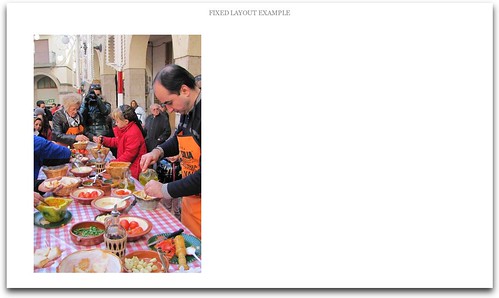
Fixed Layout on iPad

After conversion with KindleGen2 on Kindle Fire, that single page is displayed on several:

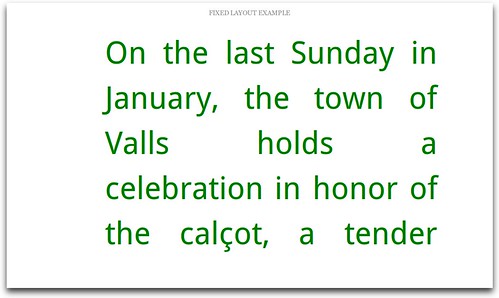
Converted Fixed Layout on Kindle Fire 1
Converted Fixed Layout on Kindle Fire 2
Converted Fixed Layout on Kindle Fire 3

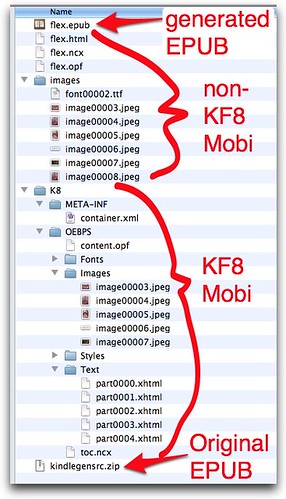
So what happened inside? Mobi, from what I'm learning (just a beginner still), is a database, with no individual files, and thus no individual file names. mobi_unpack is a Python script that goes through the mobi database and generates what would be individual files from the data.

Inside KF8 MobiThere are a couple of interesting things here. First, there are non-KF8 mobi files and KF8 mobi files. I'm guessing that's so your mobi file will work in both KF8 compatible devices as well as legacy ereaders. Second, the original EPUB is also included (shown at the bottom, in a zip file), completely unaltered, which presumably means it sits unaltered in the actual mobi file as well, and adds to its size. Finally, there is an EPUB file that is generated from the KF8 files which is a lot smaller than the original EPUB because KindleGen reduces the size of the images. The mobi_unpack script generates this standard-format file so that you can use it to create new versions of the book. It's not an Amazon thing.

So, let's really look inside. The new specs say require a lot of things I don't see in the file that KindleGen2 created. My intepretation of that is that KindleGen2 doesn't create a fixed layout KF8 mobi from my fixed layout EPUB, it just creates a flowing KF8 mobi file.

But what if you create your own fixed layout file?

First of all, Amazon wants you to add a bunch of meta tags to the OPF file (and not to the com file, as Apple and Kobo do). These meta tags determine if the book is fixed layout, what the viewport size is, and in which orientation it should be locked, as well as what kind of book it is (for children?), and whether or not you're using "region magnification". The first three are required, which means that you can't have a book that can be viewed in both portrait and landscape modes. You have to choose.

Next, and most inexplicable of all, it says you should create a single page for pages in portrait mode, and a single HTML page for a two page spread in landscape mode. (Again, this necessitates completely redoing your original Fixed Layout book.) OK. What I completely don't understand is, if you're designing a two page spread in a single HTML page, why on earth do they want you to create it in two separate blocks that you then float next to each other? It seems like a lot of busy work.

Why not just create a single image on your single HTML page for the two page spread? Is there some benefit to dividing it up into two chunks of code on the single HTML page? I don't see it, if there is.

After much wrangling, I was able to manage to create a Fixed Layout in KF8 format and view it on the Kindle Fire. Here's the original on the iPad:

Fixed Layout on iPad

Here's what it looked like after I recoded it to work on the Kindle Fire. Note that the Javascript does not work but the link to Google Maps does. And you can't miss all that lost white space due to the letterboxing.

Fixed Layout on Kindle Fire

And let me tell you, it was a pain.

And led to my post from yesterday about aspect ratio (what timing, huh?) Because there was no way I was going to crop all of my pictures from that book so they would fit an entirely new aspect ratio, they simply would not have fit. Indeed, when I think of the way most people take pictures in 4:3, or similar, I consider the Kindle Fire's aspect ratio to be very problematic for the kind of books that might showcase photography in fixed layout. I'm not sure if kids' books are often found in an aspect ratio of 1.7, like the Kindle Fire.

So yeah, I'm disappointed. Just the same, I probably will get around to explaining how to do it all. And I promise more on regular flowing books for KF8 as well. Soon.


Thursday, January 5, 2012

Selling ebooks outside of the US

If you're thinking about self-publishing, make sure you don't forget to look beyond the borders of the United States.

I started selling the electronic version (only) of my EPUB Straight to the Point book when it was published in late 2010. The print version was available through my publisher, Peachpit Press, and through traditional and online booksellers. The response was very encouraging. The first thing that I noticed was that people were buying the book from far away. A fair number of my first sales were from Australia, South Africa, and Europe, where it might have taken the print book several more weeks (months?) to arrive.

In February, 2011, I published my first miniguide, Fixed Layout EPUB. Originally, I envisioned it as an update to EPUB Straight to the Point, and so I decided to offer it for free to anyone who had already purchased that book. For those who were just interested in the Fixed Layout EPUB miniguide, they could buy it for $4, and then apply the $4 to the purchase of EPUB Straight to the Point. I sent out an email to all of the people who had bought the book directly from me. It got a huge response, and indeed, I continue to get a few requests for the Fixed Layout miniguide pretty much every day.

Between May and December, 2011, I published three additional miniguides, Audio and Video in EPUB, Read Aloud EPUB, and most recently From InDesign CS 5.5 to EPUB and Kindle. I love the idea of writing very short, focused, timely, inexpensive guides on the latest ebook production techniques. I don't have to spend months and months, and the information is fresh. Instead of giving these away, I have sold them for nominal amounts that make it easy for people to keep up to date with the latest EPUB information. With each new book, I send out a mailing to everyone who has bought any of the previous ones. They have proved very successful.

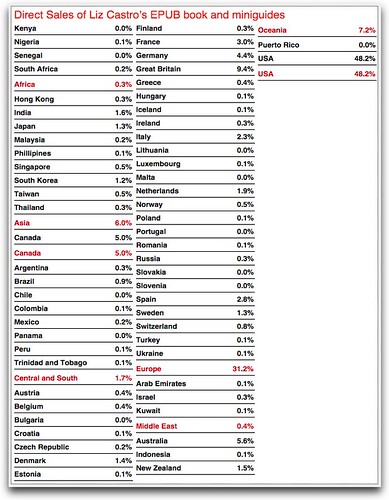
I never meant to self-publish. But the more books that I sold directly to readers, and the more names and emails that I collected, the more it seemed to make sense to continue to offer EPUB information to these folks. As a long time user of FileMaker, I've been able to massage my data to see just which books people are most interested in, and also where I sell the most books. I love looking at this information so I thought I'd share it with you. If you're a self-publisher, look closely at how many readers are NOT in the US. Click on the graphic to magnify.

SalesbyCountry

Indeed, more than 50% of my readers are outside of the US. More than 30% are in Europe. Almost 10% in the UK alone. Notice that although everyone says that Spain is full of pirates, there is little difference between sales to Spain and to France, which is similar in size. I am convinced that the way to compete with pirates is not on price, but rather on service and ease of use. Oceania, between Australia and New Zealand makes up amother 7%, Canada 5%, Asia 6%, and a sprinkling in Africa, Central and South America, and the Middle East. (Yes, my regions are pretty arbitrary.)

Now you see why I talk a fair bit on Twitter and in my blog about marketing outside of the United States. Ebooks are clearly a worldwide phenomenon and particularly for my readers, timeliness is one of the key features of my books. But neither Amazon nor Apple sell all over the world.

I didn't want to limit myself to the US, and I also definitely didn't want to depend on a single retailer. So I decided to sell my books both through those channels, and also directly to readers, using a fulfillment service called Kagi, based in California. Kagi stores my book files, charges customers and collects sales tax and/or VAT, and then emails a unique download link to each customer. It's not perfect—I've heard complaints that the system is sometimes slow—but it's definitely a start. And I love being able to get my files up just when I want to, without having to get Amazon or Apple to approve them.


Wednesday, December 14, 2011

Luxembourg's low VAT could give Amazon and Apple the edge in Europe

Luxembourg TravelphotosA hugely important article crossed my Twitter stream this morning, thanks to Sacha Heck. It said that Luxembourg plans to apply its reduced 3% VAT to ebooks [fr]. At first glance, you might think it shouldn't matter a whole lot how the tiny country taxes ebooks, but it turns out that the rule in Europe is that VAT is applied according to the seller's country (not the buyer's). That means that any company who sells ebooks from Luxembourg will only have to collect 3% VAT.

Next consider that although the reduced rate VAT is applied to print books across the EU, up til now they have insisted on classifying ebooks as services and applying the regular rate. That regular rate ranges anywhere from a current low of 15% (in Luxembourg, surprise!) to 25% in Sweden. The Huffington Post cites this application of the regular VAT rate on ebooks as one of the major reasons Why the UK is behind America for Ebook and E-reader Adoption.

This has two major effects. First, it makes it harder for publishers to deliver ebooks at competitive prices with respect to their print books. And second, ebook sellers in countries with lower VAT will have a huge competitive advantage over local sellers in countries with higher VAT. Sometimes the difference between print VAT and ebook VAT is as much as 20%.

Take Spain for example. The regular VAT is 18%. So an ebook that "costs" 20€ without VAT will cost 23.60€ including VAT. But if you buy that same book in (or from!) Luxembourg, it'll only cost you 20.60€. That's a big difference. Add that to the fact that many (most?) European countries have fixed pricing rules on books and you get a significant competitive advantage.

France has been threatening to lower the VAT rate for ebooks for months, promising to bring it down to 5.5% in January. But in the UK, just yesterday in an article in The Register Treasury Minister David Gauke said their hands were tied: “Under EU law, VAT on electronic books must be charged at the standard rate.”

Luxembourg doesn't seem to think so. But who's going to sell books from Luxembourg? Shoot, where is Luxembourg*? The answer is Amazon and Apple, of course, who already have their European headquarters (and tax homes) there and anyone else who wants an immediate advantage over their competitors. Amazon has made a fortune in the US by carefully avoiding having to charge customers sales tax. (In the US, you don't have to charge sales tax to residents of states where you don't have a tax presence yourself.) It clearly hopes to follow the same strategy in Europe.

(Photo by Wesley Oostvogels, used with Creative Commons permissions.)

Luxembourg, of course, is in the center of Europe, occupying about 1000 square miles, and home to half a million people.

Thursday, December 1, 2011

Kindle Store and Kindle Direct Publishing open in Spain and Italy

Wow, Amazon has just opened both the Kindle Store and Kindle Direct Publishing in Spain and Italy.

Amazon.es: eBooks en catalán - eBooks en catalán, gallego y euskera: Tienda Kindle

This means that people in those countries can self-publish their ebooks to the Amazon ecosystem and it also means that existing self-publishers on Amazon KDP, including folks in the US, will receive 70% of royalties from sales in Spain and Italy (as well as San Marino, Vatican City, and Andorra). Up until now, only sales to customers in Austria, Belgium, Canada, France, Great Britain, Guernsey, Germany, Isle of Man, Jersey, Lichtenstein, Luxembourg, Monaco, Switzerland, and the US received royalties of 70% (sales to customers in other countries only receive 35%)

Amazon has translated most of the self-publishing help files into Spanish and Italian, simply click on the language button at the top of the Kindle Direct Publishing site:

KDP-ES-IT

I would recommend going carefully through the legal and tax information. Amazon recommends taking advantage of the tax treaties between countries in order to avoid double-taxation. Such a tax treaty exists at least between Spain and the US, I'm not sure about Italy.

For starters, Amazon says there are 22,000 books in Spanish for Kindle on the Amazon Kindle store. And I just found 1028 Kindle books in Catalan, 68 books in Galician, and 138 in Basque. There are 16,262 in Italian. Amazon says in its documentation that it only allows books in Spanish, French, German, English, Portuguese, and Italian,  but that clearly is not the case, at least not for big publishers.

Too bad I can't buy any of them. Looks like you have to have an account on Amazon.es in order to buy them. That's pretty ridiculous, this is the perfect opportunity for a small publisher to reach out to the world. My books published in the US are available on Amazon.es, now I would like to see those Catalan books available on Amazon.com. Please?

What Catalans Want eBook: Toni Strubell, Lluís Brunet, Colm Tóibín: Amazon.es: Tienda Kindle

Thursday, November 3, 2011

Where should an ebook begin?

Updated December 9. I meant to say use type="text" (as I do in my book) but wrote down "start" instead. Argh.

Thinking about ebooks and covers. Of course a cover is supposed to give you an idea of what the book is like, is supposed to inspire a sale. But on ebook commerce sites (say, Amazon or iBookstore), you only see a tiny icon of a cover

Kindle searchiPad search

So, some people think you should see the cover when you open the book. I'm not one of them. Let's take a look first at what is the norm right now. I downloaded the sample of John Grisham's The Litigators from the iBookstore, Kindle store, and Barnes & Noble. When I opened the sample on each device, this is what I saw:

Kindle first pageiPad cover

As you can see both Kindle (left) and iPad (as well as iPhone, not shown) open to the first page of the novel.

NOOK Color cover

Only the NOOK Color opened to the cover.

If you're reading on a NOOK, you then have to scroll through eight pages of front matter (copyright, toc, title page, etc.) to get to the first page. That's annoying (and may not discourage a sale if just the sample has been downloaded).

If you're reading on Kindle or iBooks, you have to scroll back several pages to get to the cover, which is indeed the first page of the EPUB file, but it's there if you want to go see it.

Kindle coveriPad cover first page

Or, if you're on an iPad (but not iPhone), you can see the cover by going to the navigational TOC and rotating the iPad to a horizontal position:

iPad cover opposite TOC

So, what's going on here? How can you control how and when the cover appears? First, you have to create a page in your EPUB document for your cover. It should be a separate XHTML file so you can ensure that it is the first page in your ebook, and so you can ensure that the cover image appears full screen. I explain how to do this in my “EPUB Straight to the Point” book. It basically consists of having the XHTML file be the first file referenced in the <spine> section of your content.opf file.

So, if the cover is the first page of the EPUB or Kindle file, why isn't it the first thing showing when you open a book for the first time? You can control which page opens first in the EPUB by including a line in the <guide> section of your content.opf file, with the type attribute set to text. (A value of start also works, but text is the standard value, accepted by the EPUB spec.)

<guide>
...
<reference type="text" title="Chapter 1" href="chapter1.xhtml" />
...
</guide>


This works on both iBooks and Kindle. I'm guessing that NOOK doesn't support this feature, and that's why the EPUB file (which should theoretically be the same for iBooks and NOOK and other EPUB compatible ereaders) starts with the first page of the book (the cover) instead of where the publisher specified.


More of my books