Showing posts with label iBookstore. Show all posts

Thursday, April 11, 2013

How much did you sell on the Apple iBookstore?

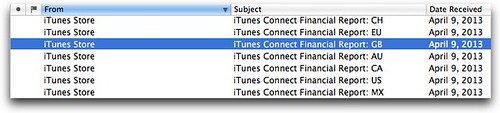
Did you get a whole new slew of Apple iTunes Connect reports yesterday in your email inbox?

Inbox

I did. They're pretty useless. Each one simply reminds me to go download the full report from iTunes Connect. And I get a separate one for each currency in which I've sold books. It would be nice if I just got a single email, perhaps detailing which currencies.

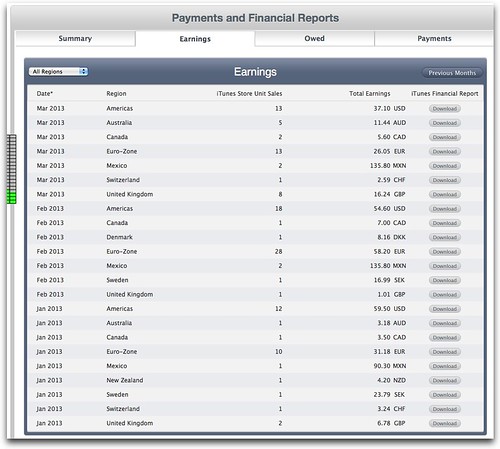
So, then you head over to iTunes Connect. I always go first to Sales and Trends, only to remember, a few glacial seconds later, that I have to download the reports from Payments and Financial Reports. Click the Earnings Tab and you'll see a long list of documents to download, one for each currency and for each month. Ugh.
iTunes Earnings 1Q2013

As you can see, my earnings on the iBookstore are paltry. Good thing I sell books elsewhere! This is certainly due to a combination of my books being very niche categories (extreme EPUB and Catalonia!) but I'm certainly willing to lay some blame at Apple's door. I wish they would beef up the iBookstore and make it a place that was friendly to book buyers. They do a number of things right: being available in the largest number of countries, creating the best ereader software (iBooks), and more, but the store just isn't up to snuff. It needs search desperately. It needs reviews, and ways to share, and comment. Anyways.

When you click those download buttons in the right column, you get gzipped files (who knows why!?) for each individual period. Before you proceed, count up the ones in the list and count the ones you downloaded just to make sure you haven't missed any. (I always miss a couple.) Then, double-click each one to unzip. I wish, oh I wish, that I could choose the period myself! Maybe I want a single period, maybe I want all the data for a year.

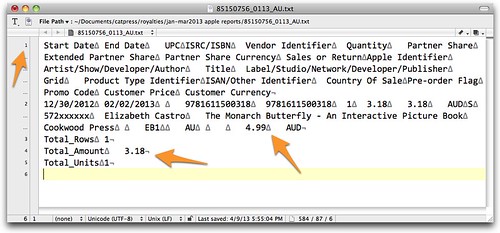
When you open the files up in a text editor, you'll see that they are partly a tab delimited collection of sales data, but with totals at the end.
Apple report file

That first line contains the field titles, and the second line is a sales record. If there were more sales records, there would be additional lines. Each field is separated with a tab (shown here by a triangle). Those sums at the end will mess up my database, so I eliminate them.

But this data on its own is not that interesting. What I want is to be able to compile the sales data from each currency and indeed each month into a single report. This is where FileMaker comes in.

I created a database with FileMaker into which I can import Apple's files, and then generate reports that tell me how many books I've sold, and which months and countries I've sold them in. If you're a subscriber, you'll have received a free download link.

Before importing, remember to make a backup of the FileMaker database, and to have removed the total lines from the Apple reports, as described above. If your fields have accented characters, I also recommend saving them with a Mac Roman character encoding. It's a hassle, but it will ensure that those characters are properly read into FileMaker.

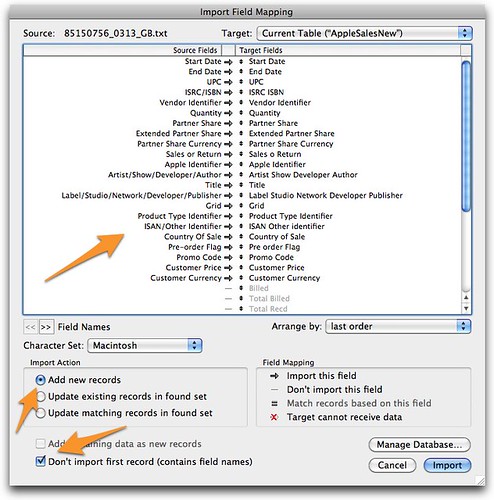
Then choose File > Import Records > File in FileMaker. Choose an Apple report and click Open.
Import Field Mapping

In the Import Field Mapping box, first make sure that each of the Field Titles matches the corresponding Field in the database. Click Add new records, and also Don't import first record (contains field names), since that is precisely the case with the Apple records. Then click Import.

You will see that a record is created for each title that has been sold in that currency,during that period.

Import all of the new Apple sales record files. The hardest part of this step is not importing the same file twice! (I've tried saying the name of the file out loud—paying attention to the two-letter key at the end of the code—and also looking at the just-imported file in FileMaker just before choosing the new one. Maybe this is easier for some people?)

Once you've got all the data in my FileMaker database, the rest is easy. I've got automated scripts for creating lists, as shown here.
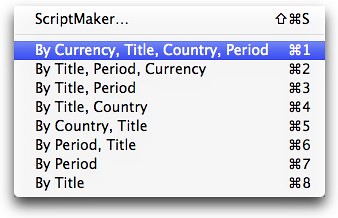
Scripts

Here are some samples. Note that they're very simple, and they don't have titles. This is because there are only three layouts that serve the eight lists. But they work.

For example, here's what the list "By Currency, Title, Country, Period" looks like. This first page corresponds to first page of the sales in Australian Dollars, but has summaries for each period, for each country, and for each title. With currencies that are used in multiple countries, like the euro, the country section is more interesting.
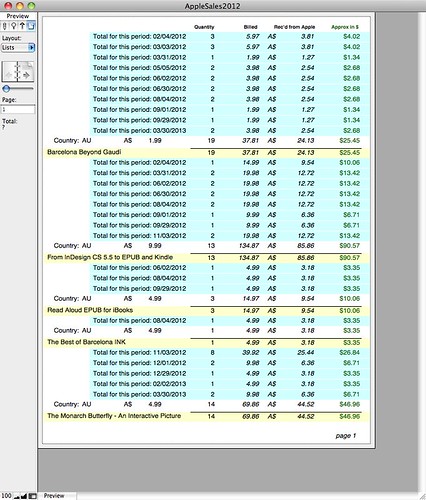
AppleSales2012

And here is the report created with the Script "By Title, Period, Currency":
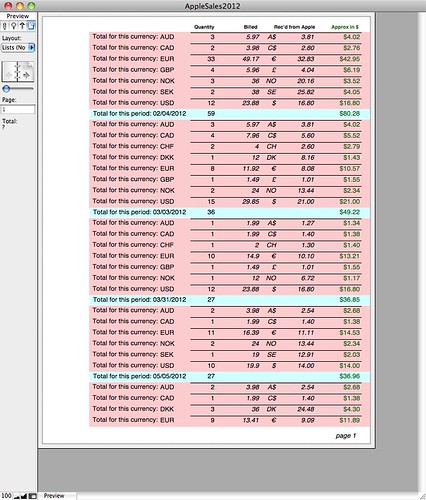
AppleSales2012

This page corresponds to the sales of a single title, with summaries for each period, and for each currency. Notice that only the estimated conversion to dollars is subtotaled, since it wouldn't make sense to sum different currency amounts.

And so on. I'm not a FileMaker developer, so I'm sure if you are, you could do this more beautifully. But it works, and indeed gives a much clearer and more complete view of your Apple iBookstore sales. I'm happy to share the database (without my data, obviously) to all my subscribers for free. Or you can buy it separately for $5. Use at your own risk!

Apple's new monthly and yearly reports

As so often happens, just as I was writing this blog post, I got an email from iTunes Connect letting me know that the Sales and Trends module of iTunes Connect had been improved. And that now I could download sales data for the whole year. I was very excited, but alas, it has a major flaw: if you download a yearly report, it doesn't give you the date for each sale; for example, all of the 2012 sales are are marked "December 31, 2012". So if you want a very summarized view of your sales, it might be helpful, but it's not sufficient for my purposes.

The one thing that is in those monthly reports through the Sales and Trends module that you won't find in the Payments and Financial Reports section is data about how many free books you're giving away. That is essential information if you're using free books as a hook to get people to look at your books for sale. I don't have a database set up for that yet (mostly because it would require downloading each monthly report from the Sales module), but I hope to offer that to you in the future.

How do you find those reports? It took me a while, and I even called the iTunes Connect hotline to ask for help (1-877-206-2092 in the US, and there are numbers in other countries as well). They answered almost immediately, but unfortunately said that they didn't know how to do it either! After I rummaged around a bit more, I figured it out:

Start in the Sales and Trends module. Click the Sales tab in the upper-right corner of the window.
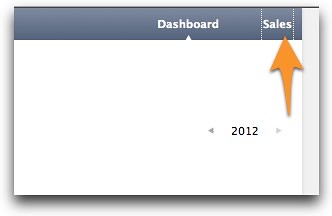
iTunes Connect-Sales

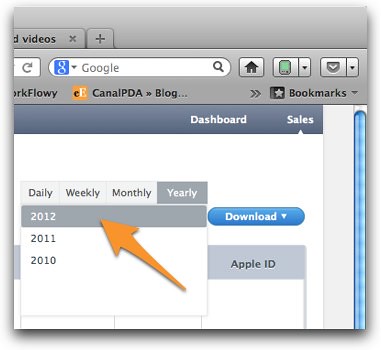
Next, click the date and choose monthly, yearly, and then the actual month or year you're interested it.
iTunes Connect-yearly

Then click Download. And you get one of those marvelous g-zipped files, that when unzipped is a tab-delimited set of data (distinct from those downloaded from Payments and Financial Reports.

What could Apple do better?

What I want is a single place where I can choose the period (from all my sales, to monthly, yearly or whatever I want), and then export all the data at once, in a single file. And I want all the data: which book, how many copies, which country, which currency, and on which date. It's not hard. Lots of other distributors offer such tools.

Tuesday, November 27, 2012

Versioning in iBooks (part 2)

Yesterday, after confirming that the new version of The Monarch Butterfly Book had not yet gone live, I called Apple's iBookstore support line—(877) 206-2092 in the US, see end of post for other countries' numbers—and asked what was going on. The guy was very helpful, told me that everyone had been on vacation between November 16 and November 25th, due to the Thanksgiving holiday (about which he and I both decided we were envious), but that they were back yesterday and should get to it shortly.

He also checked that I had the "What's New" material already included, which I guessed indicated that was a sticking point in many updated versions. (Remember to use the latest version of iTunes Producer to include the What's New information.)

And finally, he said he'd escalate my issue so that it would get solved as soon as possible. I almost, in the interest of science, told him not to escalate it, so that I could see and report on the real process, but sorry, dear reader, in the end, I did not.

About 12 hours later, I got the email from Apple confirming that the new version had gone live.

And this morning, I opened iBooks on my iPad and iPhone to see how those changes would be announced. What I saw was that iBooks adds a number to the Store button to indicate how many updates a reader has available, but doesn't indicate which book is affected:

iBooks updates

iBooks versioning on iPad

When the reader presses the Store link in iBooks on the iPad, they will see Update buttons next to the corresponding books:

iBooks versioning on iPad

On iBooks on the iPhone, going to the Store will display an Updates link:

iBooks versioning on iPhone

And when your reader follows the Update link, they'll see which books can be updated:

iBooks versioning on iPhone What's New?

At that point, and only on the iPhone as far as I could tell, the reader can click the What's New arrow to see what has changed in the new version:

iBooks versioning on iPhone

Once they click the Update button, the new version downloads to their device, and initially will be displayed with the blue "New" banner:

iBooks versioning: New banner

Once the reader has looked at the book, they won't be able to tell which version they have. I couldn't figure out any way to get information about a book's version from within iBooks on the iPad at all, or on any device once the update was downloaded. This is a serious shortfalling for what I believe is a very valuable feature.

The only way for the reader to see the versioning information of an existing book, including what has changed from version to version, is to go to the iBookstore, look up the book, scroll down to the bottom of the Book Description or Details area, and check the What's New section.

iBooks Versioning

The reader can also get a full rundown on the differences from one version to the next by clicking Version History. I think it's rather confusing to use a header like "Version 3.0" when what they mean is that the changes listed are for the EPUB3 version of the book. It is only below that you see the version number that I gave the book: 1.1.

Therefore, you might want to add version info to one of the pages of your book (the copyright page perhaps?) if you want readers to be able to tell which version they have. (I'll do this next time.)

iBooks Versioning info

So, still some wrinkles to be ironed out, but I continue to think that versioning is a brilliant idea. Now I have to update some of my other books so I can see what happens with notes and bookmarks (which aren't allowed in a Fixed Layout book like this one.

There were two major errors that were fixed in this version of The Monarch Butterfly book: some arrows that were in the wrong place on page 24, and something much more important, which I'll discuss in my next post, about JPEGs and PNGs.

You can buy The Monarch Butterfly Book on the iBookstore (and thus be notified as described above about new versions), or directly from me (via Kagi) (in which case I'll notify you personally about new versions to this book as well as any new books via email).


Here are the iBookstore support telephone numbers:

Australia: 1300 307 504 (Note that this is a low tariff number.)
France: 0805 540 117
Germany: 0800 664 5307
Italy: 800 915 902
Netherlands: 0800 0201 578
Spain: 900 812 687
U.K.: 0800 975 0615
U.S.: +1 (877) 206-2092
Toll-free from U.S. and Canada.

Friday, November 16, 2012

Versioning in iBooks 3 (part 1)

Another promising new feature announced by Tim Cook about iBooks 3 is the ability to make updates to an ebook, and then make those updates available to readers who have already bought the book. There were a few minor errors in my Monarch Butterfly book so I decided I would use it as a guinea pig to test versioning.

The first thing to note is that versioning only exists for EPUB 3 documents. They can be flowing or fixed layout, but they have to be EPUB 3.
So, my first task was to update the Monarch Butterfly fixed layout book to EPUB 3.

Changes to the OPF file

I began with the OPF file, adding version="3.0" to the initial package element and adding the namespaces that Apple recommends.

I updated the title of my book to indicate the version number, though I'm not sure this is necessary (or desired).

I added the required modification date and time:

<meta property="dcterms:modified">2012-11-06T12:00:00Z</meta>

Pay special attention to the time format: CCYY-MM-DDTHH:MM:SSZ. I tried putting just the year, and EpubCheck gave me an error. Note that both the T and the Z are required.

To make sure my fonts are recognized, Apple now requires this line instead of the com.apple.ibooks.metadata.plist file:

<meta property="ibooks:specified-fonts">true</meta>

And then comes the part where Apple lets you specify the version of your book. You are allowed two dots and three components (so 1.2.1) and up to four numbers per component (which seems excessive, frankly). And these aren't decimal numbers: trailing 0's count to keep them ordered; 1.10 is later than 1.9.

<meta property="ibooks:version">1.1</meta><!--controls versioning in iBooks3-->

Then, since my book is fixed layout, I had to add the EPUB 3 specific metadata:

<meta property="rendition:layout">pre-paginated</meta>
<meta property="rendition:spread">auto</meta>
<meta property="rendition:orientation">auto</meta>


Because my books' pages include Javascript, I had to add properties="scripted" to each of the pages which links to a Javascript file, even if it didn't use Javascript in that particular page.

<item id="milkweed" href="milkweed.xhtml" media-type="application/xhtml+xml" properties="scripted" />

And then I removed the guide section, which is no longer required by Apple (and was already deprecated in the EPUB 3 spec).

</spine>
<!--new to 1.1 guide is removed -->
</package>


New TOC file

EPUB 3 requires a new XHTML-based TOC file, which is a lot easier to write than the old toc.ncx format, since it's just formed by an ol list with links to the various TOC entries. For a Fixed Layout book, for which you want iBooks to create its graphic TOC (made of the covers of the books), just create a single entry to the first page, or cover in my case:

<nav id="toc" epub:type="toc">
<h1 class="chapter">Table of Contents</h1>
<ol>
<li><a href="title.xhtml">The Monarch Butterfly Book</a></li>
</ol>
</nav>


Then, as a replacement to the guide section, add a landmarks section, which works very similarly:

<nav epub:type="landmarks">
<h1>Guide</h1>
<ol>
<li><a epub:type="ibooks:reader-start-page" href="title.xhtml">The Monarch Butterfly Book</a></li>
<li><a epub:type="cover" href="title.xhtml">Cover</a></li>
<li><a epub:type="bodymatter" href="milkweed.xhtml">First page</a></li>
</ol>
</nav>


Finally, declare the new toc.xhtml file in the OPF file, paying special attention to the properties attribute:

<item id="toc" href="toc.xhtml" media-type="application/xhtml+xml" properties="nav"/><!--new in 1.1-->

That's it for the OPF file.

Changes to the XHTML files

In each of the XHTML files, I had to change the meta tag where I declared the character set. It was:

<meta content="text/html; charset=UTF-8" />

and it should be:

<meta charset="UTF-8"/>

I also had a few documents that somehow still had extraneous DOCTYPE elements. I got rid of those and made sure that each XHTML document started like this:

<?xml version="1.0" ?>
<html xmlns:epub="http://www.idpf.org/2007/ops" xmlns="http://www.w3.org/1999/xhtml">
<head>


There were also a few places I had erroneously used character entities, things like &copy; to show the © symbol. Now that I had the proper character set declaration, that was no longer necessary (or allowed). So I simply removed the character entities and replaced them with the characters themselves, typed in directly.

<p>Copyright ©2012 by Elizabeth Castro...

As far as content, I also fixed the error on page 24, which had the blinking arrows in the wrong place:

Wrong arrow placement

And put them where they go:

Correct placement of arrows

I also changed the Javascript so that the arrows would blink more slowly. People seem to have had difficulty finding the captions. It's actually a tricky problem. I want the photos to be displayed without distractions, but I want to offer clues. I haven't quite found the perfect solution yet.

Validating

Once of all of the changes were made, I used EpubCheck to make sure I had done it all correctly. I used the latest version: EpubCheck3RC.

Uploading the new file to the iBookstore

Finally, I uploaded it to Apple's iBookstore with iTunes Producer. When you make changes to a book that already exists, you only have to change the parts in iBooks Producer that are different, and it will only update those pieces of your package. So, I updated the description and then on the Assets page, I clicked the Choose button under Publication, and selected the new updated EPUB file. This screenshot is actually after I've done that. iTunes Producer doesn't give a lot of feedback.

Upload new file in iTunes Producer

And then I got the error I was suspecting:

Versioning error

I was expecting it because Apple says that you have to say what changed in a "Version_whats_new" XML file. I hadn't been able to find where that was.

It turns out I had downloaded the latest version of iTunes Producer, but I hadn't installed it. Once I did that, I was able to add the What's new information on the Book page:

iTunes Producer: What's New

Then I delivered the package again (no need to upload the book files again), and it went through without a hitch.

What I am most interested to see now is how it notifies me (and all of you who have purchased the book through the iBookstore) about the new changes. The new description went live almost immediately, but when I go to iTunes Connect, it tells me that the EPUB 3 version is under review.

iTunes Connect-3

And indeed, I don't see that little update icon that Tim Cook promised. Though I'm left with questions: When does iBooks check? Does versioning only work in iBooks 3? Do I have to open and close the app to force a check?

Update versioning, not yet

When I go to the Purchased section of the iBookstore, I also see that it shows that the book was already downloaded and I have no opportunity to update it. I assume that when the changes go live, this button will change.

Already downloaded

If you haven't bought the book yet, you'll be able to tell if you have the new version by checking page 24 and clicking the info arrow to see where those arrows show up.

And I'll keep you posted about how long it takes to go live. It seems like a really important feature to me. I would have liked to add a note or bookmark to see if those are maintained, but fixed layout format doesn't allow them. I'll have to update one of my other books...

Wednesday, October 31, 2012

New Contract needed for new iBookstores

I got an email from Aaron Shepard, POD expert, this morning, letting me know that it's not enough to add your books to the new 18 iBookstores (Latin America and New Zealand) that Apple made available last week. You also have to download and accept the new contract addendums! Argh. So glad he told me.

Quick overview:

First, add the new territories to your books. Start by going into iTunes Connect and clicking Manage Your Books.

Manage your books

Next, click the cover of the book to which you wish to add territories.

On stores-1

Notice that the book on the right just says "32 stores", but there are currently 50 total possible. That means I need to add the remaining 18 new territories.

You can also see, under the Read Aloud EPUB book on the left, that I had already added the new territories to this book, but the book has still not been accepted into the new territories.

Next, you'll see the summary page for the chosen book. click the Rights and Pricing button in the upper-right corner.

Rights and Pricing button

iTunes Connect will show you the current list of territories where your book has been added, along with the Sales Start Date, DRM, Price, and other data. Click the Add New Territories button in upper-left corner.

iTunes Connect Rights and Pricing list

Choose a DRM option, Sales Start Date, Base Currency (sales in most Latin American countries in their own currencies is not available, with notable exception of Mexico), Publication Type, List Price (of print edition), and Suggested iBookstore Price (which must be less than List Price). Then check the boxes next to the territories you wish to add. Or click Select All. Then click Continue.

Add New Territories dbox

iTunes Connect now shows you a list of the new territories and the price for each one. You are not limited to this price. Go through the list and adjust as necessary. (The book shown here is free, so the price is 0 in each case.)

Confirm New Territories

Click Confirm when you're ready. Now you'll be back at the Rights and Pricing list, with the new territories added. But notice that they're still Not On Store. (Aaron tells me that if you click on the Not On Store label, you can see what the problem is.)

New Rights and Pricing

Click Done three times (always at bottom right of window) to get back to the iTunes Connect main window.

Now click Contracts, Tax, and Banking on the left side of the main iTunes Connect window.

Contracts, Tax, and Banking

Click Request next to the new Contract amendment. I recommend downloading and reading the document. If you agree, click the appropriate box and then click Submit.

Two more Done buttons and you're, well, done.

Now when you go to Manage Your Books, you'll see that your books are available on all 50 stores.

On 50 stores

And if you visit one of the new territories in iTunes (by clicking the flag button in the lower-right hand corner and then choosing the desired country), you'll see your books listed. It might take some time for the new iBookstores to properly index your book's search terms. At first, I was unable to find my books, even by searching on my name. Searching on ISBN does seem to work, and I'm hoping that that will get updated quickly.

Mexico iBookstore

Note that my book that sells for $5 in the US sells for 65 Mexican pesos which, according to Google, is indeed the going rate.

One more thing I learned last week: reviews are posted only in the iBookstore that belongs to the country of the person who wrote the review. So, there is a lovely review of the Monarch Butterfly book by Laura Brady which I can only see if I connect to the Canada iBookstore:

Monarch Butterfly review, by Laura Brady

and folks who connect from countries besides the US cannot see the five five-star ratings that the book has in the US iBookstore.

In US iBookstore

I think it would be nice if Apple made those out-of-country reviews available (perhaps after reviews from one's own country?) If it's the same book, this is information that would be useful to all.

At any rate, keep in mind that if you want to see reviews of your books in other iBookstores, you'll have to go to each store individually. And if you've reviewed my book on a non-US iBookstore, please let me know. I'd love to see it. (And thanks!)

Tuesday, October 23, 2012

Apple opens iBookstores across Latin America (and New Zealand)

Updated: 9:32am

Thanks to a tip from Miquel Hudin, I noticed that Apple has already made it possible for publishers to add books to iBookstore in Latin America: specifically, Argentina, Bolivia, Brazil, Chile, Colombia, Costa Rica, Dominican Republic, Ecuador, El Salvador, Guatemala, Honduras, Mexico, Nicaragua, Panama, Paraguay, Peru, and Venezuela. And it has also opened the iBookstore in New Zealand.

Add Territories Latin America

Simply go to iTunes Connect, Manage your books, and then choose Add Territories in the upper-left part of the window.

I assume that there will be a new version of iTunes Publisher today as well.

Note that I added a few of my books this morning, but they still say "Not on iBookstore" in the new countries. I suspect that will change during the day.

There are books in Spanish for sale already on some of the new iBookstores. To see a different country's iBookstore, in iTunes, choose iTunes Store, and then go to the very bottom of the window and click the flag in the bottom-right corner.

Click flag to change iBookstore country

Then choose the desired country from the list. Note that not all of the listed countries have the iBookstore (some only have the App store).

Here's a screenshot I took after switching to the Argentina iBookstore. Actual books for sale, in Spanish. Note the currency, however, all in USD.

iBookstore Argentina

As of 9:23, my books are still not available in the new countries, even though one is in Spanish. I'll let you know.

It is interesting to note that "Libros" now appears as a category on Apple's LinkMaker page for the new Latin American Market (and Books for New Zealand):

iTunes Link Maker Argentina

This is very exciting and is definitely an auspicious start to this day of new announcements by Apple. Can't wait for the rest.

Tuesday, May 22, 2012

Creating pop-up footnotes in EPUB 3 (and thus in iBooks)

Apple sent around an email today announcing that EPUB 3 is now supported by iBooks and the iBookstore. It also tantalizingly suggested that EPUB 3 supports pop-up footnotes and said you could find information in the EPUB 3 spec on the IDPF website. The first part is true, and the second part is sort of true, but if you like, read on and I'll explain just how to do it.

The IDPF website explains the proper syntax for marking up footnotes semantically, that is, by labeling them as footnotes:

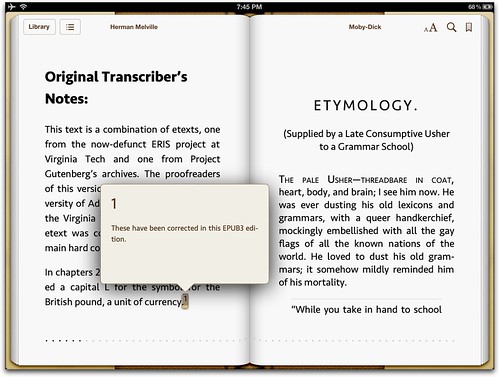
<p>In chapters 24, 89, and 90, we substituted a capital L for the symbol for the British pound, a unit of currency.<a epub:type="noteref" href="#n1">1</a></p>

This snippet is from an EPUB 3 version of Moby Dick, coded by Dave Cramer.

And then the EPUB 3 spec goes on to say that a Reading System may associate specialized behaviors with that syntax, and it looks like Apple has associated the pop-up functionality to the combination of epub:type="noteref" and epub:type="footnote" attribute/value pairs.

So, to make a pop-up footnote in EPUB 3 (which works in iBooks), you just have to create your footnote marker link as shown above, paying special care to include the epub:type="noteref" attribute/value pair. I'll repeat it here for good measure:

<a epub:type="noteref" href="#n1">1</a></p>

Next, create an aside element that contains the text that should appear in a pop-up display when the link is pressed.

The aside element must also have the epub:type="footnote" attribute/value pair to mark it as the footnote content as well as an id attribute that matches the value of the href attribute in your link.

<aside epub:type="footnote" id="n1">
<p>These have been corrected in this EPUB3 edition.</p>
</aside>


Note that the aside element, which is new to HTML5, is automatically hidden by iBooks. If you put your footnotes in, say, a div element, it would still pop-up when the link was pressed, but it would always be visible as a regular part of the text as well.

Another thing that I noticed is that you can enclose your a element in sup elements so that your footnote markers are raised with respect to the surrounding text, but make sure it's outside the a element or else it will break your pop-up footnote.

And that's it. Look! It works!

Here it is in a horizontally-oriented iBooks:

pop-up footnote, horizontal

And here it is vertically:

pop-up footnotes, vertical

Note that I completely disabled the CSS on this document, to be sure that the pop-up had nothing to do with any CSS effect.

And notice that the font in the pop-up changes to match the font chosen in the Font menu (here I've chosen Seravek):

pop-up footnote in Seravek

Again, you can download this and other EPUB 3 examples from the EPUB 3 Samples site and view it in iBooks 2.1.1 (from April!). You can view this particular pop-up footnote on the third page of the Moby Dick book, called "Original Transcriber's Notes" in the table of contents (preface_001.xhtml). Thanks to Dave Cramer who coded the example (in January). And thanks to Apple for adding this functionality... and hinting that it existed so I could figure it out! I love, love, love that Apple totally followed the standard on this one: supporting symantically marked footnotes, and then "associating specialized behaviors" as the spec directs. No extra CSS or Javascript required. Well played, Apple.

OK, there are now two desktop EPUB 3 readers, and iBooks and the iBookstore have officially announced support as well. And there are pop-up footnotes. What are you waiting for to start creating EPUB 3 ebooks?

Monday, February 27, 2012

Metadata in iBooks, iBookstore, iTunes Producer, InDesign, and Amazon

I got an email today asking how to set the subject keywords for an ebook in InDesign. That part is relatively easy. You choose File > File Info, and add the desired keywords to the Keywords field, separating each keyword from the next with a comma or semicolon:

Metadata Keywords InDesign

But what happens when InDesign exports to EPUB? I'm happy to report that it does exactly what it should and converts those keywords into dc:subject elements in the OPF file:

Metadata in content.opf

Now, I'm no expert on metadata, so I have not made it a point to use standard BISAC book categories for describing the subject of my books in those fields. We'll come back to this.

When you upload your book to Apple's iBookstore, you have the option of entering BISAC data in iTunes Producer:

Metadata in iTunes Producer

And that data entered in iTunes Producer overrides whatever you entered in the content.opf file (or InDesign for that matter). When someone downloads your book, they will only see the Main BISAC category (although the original keywords remain in the content.opf file inside the book):

Metadata in iBooks

And as far as I can tell with this single example (though I've heard other anecdotal evidence also in support), the iBookstore does not use the keyword metadata to help aid searches for your book. Notice for example a search for GREP, which I specified as one of the keywords for this book:

Metadata in iBookstore

iBookstore fails to return my book when searching for "GREP", even though the book contains "GREP" as a subject keyword.

For the record, my book does appear when searching for "InDesign" and "EPUB", presumably since those words are also in the title.

Then I switched over to Amazon to check what happens there. I also had to enter the BISAC categories when uploading my book to Amazon. In addition, they let me enter up to 7 keywords.

KDP Metadata

Amazon doesn't list a category next to a book on the Kindle. When I search for InDesign and EPUB, my book appears (as it should, since those words are in the name). More importantly, when I search for "GREP" on Amazon, my book also appears:

Amazon.com: grep

Now, I am not at all sure whether Amazon is paying attention to my specified dc:subject elements or more probably to the keywords that I specified above. But either way, it gets points for finding the book.

Seems like you can't hurt anything by adding the metadata in InDesign and/or directly in the EPUB file, but it is far from conclusive whether or not it helps. I wonder if other ebook distributors pay attention to the dc:subject elements. Does anybody know?

Finally, Apple iBookstore clearly has a long way to go towards being a useful tool for discovering books you're interested in. That it completely ignores metadata categories and gives you no other method for specifying them is pretty lame, to say the least.

More of my books