Thursday, March 19, 2015

Meerkat testing - streaming video on Twitter

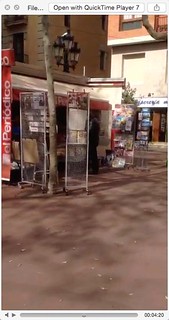
I tried tweeting some vines (very short, sometimes edited videos) a few weeks ago during the Sant Medir festival here in my Barcelona neighborhood of Gràcia and really liked the idea of capturing an event with video and not just photos.

Today, I tested Meerkat, which everybody has been talking about since it's debut (ish) at SXSW.

I went to a lovely little square in Gràcia, in the middle of Barcelona to do a test. A few things I learned:

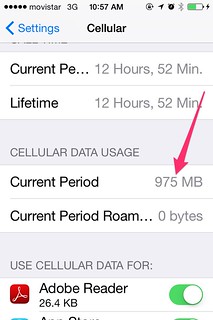
1. It doesn't use as much data as you might think. My 8 minute video was broadcast using only 25Mb of data from my 3G network (you can test this by going to Settings > Cellular > and then checking the figures at Cellular Data Usage for the Current Period before and after you meerkat). I got a couple of "low bandwidth" warnings, but these are not reflected in the final video. I asked the people watching, and they told me that they didn't notice a lag.

Cellular_Before Cellular_after

2. You can see tweets from people who are watching your meerkat stream as you broadcast, and you can answer, but those tweets are not saved when you save the video later. Further, all of your tweets are sent to your own Twitter timeline prefaced with your user name (why?), but they don't reference the meerkat stream (why not!?) so anybody looking at your Twitter stream who hasn't seen the initial | LIVE NOW | notice just thinks you're talking to yourself.

Pantallasso d'un vídeo de Meerkat

3. Instead of tweet commentary, it's better to add audio (thanks Patrick Jackson!). I had my headphones so the microphone was close by. Then I could explain what I was streaming and answer questions from people who were watching.


4. Once you've stopped broadcasting, Meerkat gives you the option of saving your video. The first time I tried, it gave me an error, but it let me try again, and then it saved. Remember that any tweets that accompanied the video are not saved. It would be nice to have the option. The 8 minute video takes up 31Mb. (It may be that that's the same amount of data that was used, Settings doesn't give exact figures.) Quality is very reasonable.

5. Patrick tells me you can only stream vertical video and that if you rotate the phone, you simply lose 2/3 of the screen. That's too bad. (I didn't try it.)

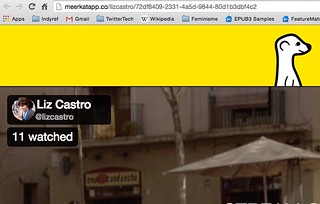
6. You don't have to have Meerkat installed in order to watch video. Of course, you do need the program (available currently only for iOS) to add tweet comments (which is only visible while it's being broadcast) or to stream your own productions. Once the broadcast is over, Meerkat does not give a lot of information about what was shown, or where you might find the video (since it is not saved anywhere except on the broadcaster's phone, if they've chosen to save it). It does tell you how many people watched. In my case, for this first meerkat, there were 11 people watching, including Patrick and some other journalists I was talking to just before the test. I couldn't figure out a way to see who those 11 were, or to follow them back. This clearly very new software.

Post-emissió

7. Wow, there are so many possibilities. As Patrick says, there are three upcoming elections in Barcelona, the city elections (which may be a bellwether for the Parliamentary turned plebescite elections for independence in September) and then the Spanish general elections later in the fall, in which many pro-independence supporters are promoting either a total boycott, or going enmasse to demand recognition of the previous independence vote. And there are always protests, and speeches, and cassolades…

Not to mention all of the cultural events, or concerts... Hmmmm.

Questions to be answered:

1. What are the legal ramifications? Do same legal rules apply about livestreaming bystanders as when photographing them?

2. How can you get more people to be involved, watching, commenting?

3. What happens if a lot of people try to meerkat the same event? How quickly before bandwidth gets jammed?

I'm sure there are many more. What do you want to know? How would you use this software? What would you like to see streamed from Barcelona?

Friday, March 6, 2015

Customizing a Twitter feed widget

I haven't posted here in way too long, partly because the blog had veered so far toward e-book publishing that I worried that posting about anything else was distracting. I think I just worry too much. Today I return to this blog about "pigs" (local food, buying local, etc.), "gourds" (creating beautiful things, by hand or by bits), and "wikis" (technology, ebooks, twitter, publishing, etc.) I hope you enjoy what I share here.

This post comes from a Twitter workshop series that I've been doing in Catalan over at Dra. Piula. I mean to translate it into English, but for now I may just do highlights. We'll see. But I thought this post about customizing a Twitter feed widget would interest a lot of English speakers as well. Here goes:

-----

You may already know how to create a Twitter widget for your blog or WordPress. It's not hard. You go to Settings in Twitter, click Widgets on the left, Create New on the right, and then choose criteria for the contents of the Twitter feed. Then click Create, and copy the code to your blog.

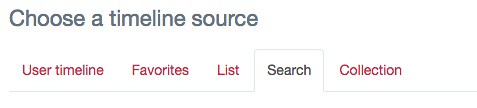
But how can you go beyond Twitter's basic search options? At first glance, it looks like you have to choose between a User timeline OR Favorites OR a List OR Search OR a Collection:

timeline_source

But what do you do if you want a user's timeline with a certain hashtag? What if you only want to someone's tweets in English? :) Or you want to see all of the tweets of a group, but only regarding a particular topic?

I'll show you.

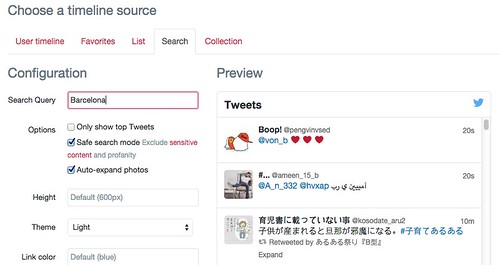
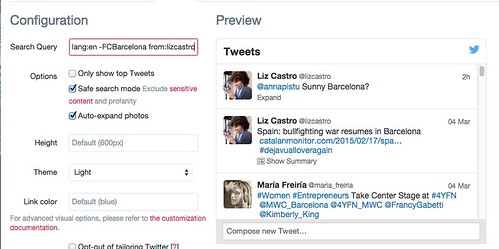
To begin, make a normal widget using the Search option and enter the first topic that interests you into the Search Query box:

Search1

Notice that the Preview populates with all of the tweets that satisfy that criteria, which I can promise for Barcelona, means a lot of varied tweets.

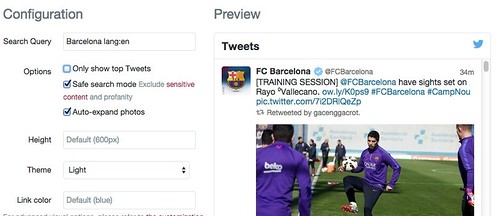
Let's search only for tweets in English. Use lang:en (the two letter language code for English. And note that ca is for Catalan, but it doesn't work).

Search2

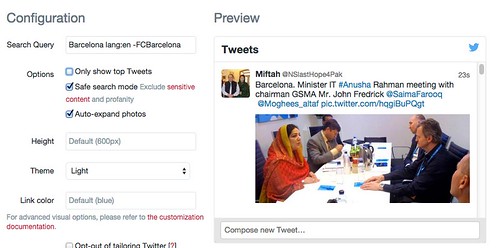
Now let's get rid of tweets that mention FCBarcelona, as much as we may love them, since they tend to block everything else out about Barcelona. Use -FCBarcelona

Search3

How about only tweets (and retweets) by me? Use from:lizcastro

Search4

The possibilities are endless. You can precisely tailor your Twitter feed gadget to your audience, without having to limit your activity on Twitter itself.

What other criteria can we use for a search? Here's all the ones I found:
  • To search for a given word or hashtag, just list it: Barcelona, #MWC15, etc.
  • To exclude criteria from the search, use a minus sign: -beach or -from:troll
  • To find tweets in only a given language, use lang followed by the two letter code for the desired language: lang:en or lang:fr. Unfortunately, Twitter doesn't know how to distinguish tweets that are in Catalan, sometimes it thinks they're Portuguese, sometimes Romanian, sometimes Italian. And if I tell it to show me only Catalan tweets, it doesn't show any at all :( 
  • By default, RTs are included. If you don't want them, add exclude:nativeretweets
  • If you want only tweets that contain images, use filter:images
  • If you want only tweets that contain videos, use filter:videos
  • If you want only tweets that contain vines, use filter:vines
  • If you want tweets with links, use filter:links
  • If you want tweets from a given Twitter account, use from:TwitterName (no @ needed)
  • If you want only tweets from verified Twitter accounts, use filter:verified
  • If you want tweets only from the accounts belonging to a given list, use list:list owner name/list name
  • If you want only tweets who have received a given number of replies, use min_replies:n, where n is that number 
  • If you want only tweets with a certain number of favorites, type min_faves:n, where n is that number 
  • If you want only tweets with a certain number of RTs, use min_retweets:n, where n is that number
You can use AND, OR and parentheses to combine criteria:
  • If you separate each criteria with a space, Twitter concludes that you want only tweets that satisfy all the criteria. As if you typed an AND between them. So Catalan independence will get you tweets that include both Catalan and independence.
  • If you separate each criteria with an OR, Twitter will show you tweets that satisfy either one criteria or the other.
  • If you want to exclude a criteria, use the minus sign (equivalent to NOT).
  • You can use parentheses to combine criteria in various ways (Catalan OR independence) lang:en would get you all tweets in English that talk about either Catalan or the independence (so you might get Catalan books or Scottish independence, for example).
Are you thinking about all the possibilities?
  • Combine from:username and min_retweets:100 to get only the user's most popular tweets
  • Combine from:username and lang:en to get only a user's tweets in a given language
  • Combine from:username and -lang:en to get only a user's tweets that are not in English
  • Combine from:username with a search term to see only the user's tweets that are about a given topic
  • Combine list:listowner/listname and -from:username to get all of the tweets from a list, except for from one person in particular
  • And so on and so on.
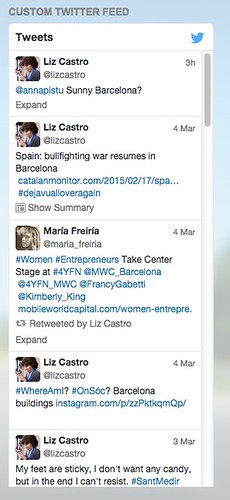
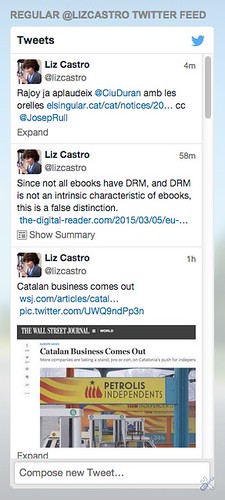
To sum up, let's look at that Twitter feed we created, with tweets from me, about Barcelona, not including FCBarcelona, and only in English (on the left) compared with my standard Twitter feed on the right:

results regular_feed

Thursday, October 24, 2013

Why iBooks for Mac Matters (Goodbye, PDF!)

We folks who create ebooks have been waiting for iBooks for Mac for a long time as a testing tool. Copying EPUB files from one device to another is a hassle and being able to see a book right where you've created it is frankly, this side of wonderful.

But of course, we #eprdctn people are not at all the point. Apple's release of iBooks for Mac in its new Mavericks operating system is a huge step for ebooks and EPUB because it makes EPUB available where people want to use it: on their desktops. The fact that this is the very same format—and the very same files—that works in their ereaders and tablets is icing on the cake.

Have you ever tried to send someone an ebook? It's not fun. Most normal people out in the world have never heard of EPUB and if you start explaining how to download a Firefox extension or make them buy a program to open it, they'll smile (if you're lucky) and go do something else.

Up until now, if you wanted someone to be able to open an ebook easily, you sent it in PDF format. And frankly, PDF is a dead end. It works ok on a computer, but it's miserable for reading on smaller devices. (No apologies to you PDF folks, sorry, and don't flame me in the comments. I don't care that on some Android devices, a PDF is slightly readable. I want an open, universal, flexible, standard format, and that's EPUB.)

What's PDF's great advantage? After years of downloading Adobe Acrobat Reader, most people have it on their computers, and when they double-click a PDF, something miraculous happens: it opens.

The last Pew Research Center poll about ebook reading (April 2012) says that more people read ebooks on their computers than on any other devices. In fact, 42% of the Americans who had read an ebook had read it on their computers, similar to the 41% who read on black and white ereaders, 29% on cell phones, and 23% on tablets. And that was 18 months ago, in the US.

In Spain in 2012, just to give one example in Europe, 55.8% of ebook readers use a computer to read their ebooks, compared with only 6.6% who use ereaders. According to the Spanish Publishers Guild only 9.7% even own an ereader. (I wished they gathered data about mobile phone reading, but they don't.)

At any rate, until Mavericks, if they were reading on a computer, they were reading in PDF. But Apple changes that. Not only has Apple released a fairly decent EPUB reader—that supports both EPUB2 and EPUB3, and both fixed and flowing formats—the most important thing is that iBooks for Mac is included in the Mavericks installation automatically.

That means people don't have to even know iBooks exists. You send them an EPUB file, they double-click it, and it opens.

open iBooks

ibooks open

Pure magic. They can read all kinds of ebooks, as large or small as they like, with JavaScript, audio, video, media overlays (read aloud), and in Asian languages with right-to-left page progression where necessary. It just works.

Now, why was that so hard?

Wednesday, October 23, 2013

Quick iBooks for Mac preview

Update: Several people have reported to me that iBooks for Mac does not support pop-up footnotes. Hopefully that's a bug that will be fixed soon!

Although there have been ebook readers for the Mac for some time, I was very pleased to hear that Apple's new operating system (Mavericks) includes iBooks for the Mac—which in contrast with most other desktop ereaders (except Readium) supports both flowing and fixed layout and both EPUB 2 and EPUB 3 format ebooks. Since iBooks is free and installed automatically, this means that Mavericks users will be able to double-click an EPUB file from the desktop—or an email message—and have it open right up.

EPUB files with iBooks icon

I was very anxious to see what iBooks might look like on the Mac. But I'm not so foolhardy as to install a brand new operating system on my computer while I'm finishing up a couple of big projects, so I installed it on my daughter's computer instead! I thought I'd give you a quick rundown of what I found.

First, you don't have to install iBooks separately, it comes included with Mavericks. I found it on the dock: an orange circle with an open book.

iBooks on Dock

When I opened it up, it immediately asked me to sign in with my AppleID—it feels like you can't go anywhere these days without identification. I find it a bit oppressive, especially since I wasn't on my own computer. And though it let me log in, I couldn't download any of my purchased books because I had already authorized five computers and this wasn't one of them. So I went and deauthorized them all and then reauthorized this one only to be warned that if I downloaded books from this particular AppleID account, I wouldn't be able to download items from a different AppleID account (e.g., my daughter's, who owns the computer) for 90 days. I didn't think she'd be very happy with me, so I didn't do it. I tried creating a separate user and then opened iBooks again, but got the same error. So I opted not to download any of my already purchased books.

AppleID

This was frustrating to me. I should be able to access my purchases on any device to which I log in, whether or not someone else also has an account there. This means iBooks doesn't really work in the cloud—it only works on your personal devices on the cloud, not at the library, or at the vacation house you rented, or on the computer you borrowed from your daughter.

For testing purposes, however, I don't have any trouble getting my hands on other EPUB documents. I chose an EPUB3 flowing book, and EPUB3 fixed layout book with JavaScript, and a fixed layout book with EPUB2-style read aloud.

To load them into iBooks you choose not File > Open Book (which remains stubbornly grayed out, and refers to opening a book that's already in iBooks), but rather File > Add to Library. You can add a few by command- or shift-clicking multiple items in the dialgo box. Click the Add button and you'll see them listed in your library screen.

Library, showing title and author

If you've logged in with your AppleID, you'll also see any books that you'd previously purchased, with tantalizing cloud icons in their upper right corners. Display the books' authors and titles by choosing "Show Title & Author" from the Sort By menu in the upper right corner of the Library window.

Let's look first at the flowing book (double-click to open). I used What's up with Catalonia? (a recent collection of essays from leading Catalan leaders and thinkers on the independence movement there).

The default view is a two-page spread. The cover is shown on the left-hand side, which in my case, shifted the copyright page to the right-hand page, and the title page to the left-hand page, an effect I didn't like much. But of course, there's not a lot of control with a flowing book, so I bit my tongue.

You can switch to a one-page view by choosing View > Single Page or by simply dragging the right edge of the page to make the layout narrower. iBooks will let you view a narrow single page, or you can drag it out to make it wider.

flowingbook-1
flowing book 2
flowing book 3

If you get too wide, iBooks will first add white margins around the text, and finally it will shift to a two-page layout to keep the text from displaying on excessively long lines. You'd think you could choose View > Two Pages to go to the two-page spread view, but although it was automatically chosen when I pulled the layout out manually, it was always grayed out, and I couldn't ever choose it. Looks like a bug.

flowing book 4
flowingbook 5
flowing book 6

Click the full-screen option (diagonal arrows in the right top corner to fill the window with the screen, which means a two-page spread with moderately wide paragraphs and ample margins.

flowing book 8

Make the text larger with Command-+, and then make it smaller with Command-–.

flowing book 10

And yes, you can make the text sufficiently large so that a full-view contains only a single page.

flowing book 9

But you can't make it so small as to force a third page.

Turn pages either by clicking the arrows that appear when you hover over the right or left edges of the page, or perhaps more easily by clicking the right and left arrows on your keyboard.

page arrows

Consult a dictionary for the definition of a word by double-clicking the word in question.

dictionary

If you select a phrase or two, you can choose to highlight (or underline) the text for further reference, add a note, copy it, look it up in the dictionary, search the web or Wikipedia, or post the selected text to Facebook, Twitter, send it in a Message or Email, or (with Start Speaking) read the selection out loud.

iBooks for Mac options

iBooks appends a link to the excerpt's book on the iBookstore, but that link only works if the copy came from the actual copy of the book on the iBookstore (and not a local version).

excerpt notes

If you already know you want to highlight, hold down the Command key while you're selecting text.

iBooks won't let you copy more than a few paragraphs of text at a time, presumably for copyright reasons.

You can see the contents of a note in two ways. First, you can click the little note icon next to the highlighted text itself. Or you can view all your notes and highlighted text by clicking the small page icon on the left side of the window. The notes will be organized by chapter—as long as the book is in EPUB3 format with a proper NAV document. If the ebook is in EPUB2 document, the notes are displayed in chronological order, which seems a lot less useful, to be honest. You can jump to the referenced section in the book by clicking the page number next to the note.

iBooks notes

You can consult the Table of Contents by clicking the bulleted list icon in the upper-left corner. Note that the chapter currently being viewed will be highlighted in blue. (Curiously, this works for both EPUB2 and EPUB3 documents.)

TOC

OK, how about Fixed Layout?

I opened up my Monarch Butterfly Book to see how iBooks for Mac would do. The Monarch Butterfly Book is EPUB3. I felt compelled to jump to Full Screen view right away so the photography-filled book wasn't lost among the myriad windows on my screen. You can always choose View > Thumbnails, click the little Thumbnails icon, or press Comand Shift T to make the handy page thumbnails appear at the bottom of the screen. Click on a page to jump there.

FixedLayout-1

All of the JavaScript effects in the book worked just fine, including transitions and animations, scripts, and more. Again, use the right and left arrows for navigating (or the thumbnails), and the mouse to click.

You can also set bookmarks for fixed layout books. And once you have, you'll see them listed when you click the bookmarks menu.

There are two related things that annoyed me about iBooks rendering of fixed layout: you can't show a single page, and you can't zoom in to a book. My Monarch Butterfly Book has high resolution photos but you can't zoom in to see the details like you can on the iPad or iPhone.

One solution is to create a single image out of two pages (half of the image is on each page), like I do in Barcelona Beyond Gaudí: (If you were specifically targeting an EPUB to a laptop audience, you could also be careful with the aspect ratio so that it better fit a horizontal orientation.)

one image with two pages

Read Aloud, and Right-to-Left Page Progression

My manga.epub example is an EPUB 3 fixed layout book with Japanese writing and right-to-left page progression. I'm happy to report that iBooks for Mac displayed it perfectly, including the proper highlighting of the words when the Read Aloud media overlay was invoked. You can double-click words to have iBooks restart the reading from that point.

iBooks for Mac Read Aloud_Japanese

Another interesting thing is that you can have multiple books open at the same time. This is obviously useful for readers, but I can see it coming in very handy for testing and production work as well.

iBooks-multiple books

Finally, I should call your attention to iBooks' preferences, where users can choose whether to force text justification (regular line endings on the right side of the page) or let the lines divide naturally, and/or whether to allow hyphenation. I haven't yet tested whether these settings override or are overridden by settings in an EPUB document itself.

Users can also choose to sync bookmarks, highlights, and collections across devices, but it didn't work for my manually uploaded books. I suspect it only works for books purchased from the iBookstore.

I'd love to hear if you find out anything else interesting about iBooks for Mac. Overall, I'm pretty pleased. It's great to have a free program on the Mac that people can read EPUB ebooks with.

Thursday, September 12, 2013

About croquetes, Twitter, and the Catalan Way

Photo Sep 11, 4 32 52 PM

Yesterday's Catalan Way—Catalonia's 250 mile long joining of hands in support of Catalan independence from Spain—would not be the first movement to question Twitter's algorithms for choosing trending topics. But I'm sure it's the first one to respond with #croquetes!

Yesterday, Twitter buzzed with reports, videos, and photos from the #CatalanWay, which in Catalan is called the "Via Catalana". Today, it is newspapers all over the world, from the New York Times, Washington Post, Wall Street Journal, Los Angeles Times in the US, to the Guardian, Telegraph, Independent in the UK to Der Spiegel, Die Welt, Berliner Zeitung in Germany, and so on and so on. VilaWeb has a good list.

But Twitter stubbornly refused to register #ViaCatalana, the hashtag marking most of the posts, as trending. During a radio show on RAC1, Jordi Basté explained that Twitter had told them that 1000 people had to be talking about a particular topic in order for it to 'trend', but that it was important that that topic not have trended the previous day. Half in gest, he said, why don't we test that theory with "#croquetes" [a very typical and common kind of special leftovers in Catalonia, generally meat mixed with bechamel sauce and fried, quite delicious].

Within minutes, everyone was tweeting #croquetes, and sure enough Twitter quickly listed it as a trending topic. In fact, it's still trending this morning.

(20) Twitter / Search - catalanway

While some talked of conspiracy and showed that #viacatalana was being heavily used across social networks, others explained Twitter's system for designating trending topics.

My opinion is that whatever Twitter's system is, it does not work. There is absolutely no reason that such an event, closely followed by the world media, front page on Wikipedia, and tweeted by hundreds of thousands of people would fail to 'trend'. Twitter needs to revise its trending topic algorithm, so that we don't have to resort to silly tricks like tweeting about yummy food. And it's true that, totally coincidentally, I had #croquetes for dinner last night!

More of my books